





The Only Ripper to Support Both DVD & Blu-ray
Forward this article:



Can cherished DVD movies not be played? Or are commercial DVDs encrypted so the device cannot read them at all? In such cases, a DVD ripper that converts DVDs to digital formats would be helpful. However, how to find one that is really stable and fast? Well, here's the right page for you to look through several methods to rip DVDs to a computer, backing up your favorite DVD collection, and giving you a perfect viewing experience.
1. Check your equipment
2. Choose output formats: ISO vs. MP4.
Before you start, make sure which format you want to choose. There are two well-known formats: ISO and MP4.
ISO Image preserves 1:1 quality with all menus and bonus features. But you can only play large files natively on limited devices. In contrast, MP4 (H.264/HEVC) is a more universal format to shrink a bulky DVD into a 1–2GB file with high quality. It's more compatible to store and share. For the best balance of quality and space, MP4 is highly recommended.
3. Management of post-conversion
Once finished, a good organization goes a long way in managing your digital collection:
VideoByte BD-DVD Ripper is the best DVD ripper that can rip commercial DVD movies and homemade collections to 300+ digital formats, such as MP4, MKV, MOV, FLV, and M4V. To help you back up your DVD collection, it enables you to rip both homemade and commercial DVD/Blu-ray discs, VIDEO TS folders, and ISO files, on Windows and Mac systems. It can bypass various copy protection like AACS, Cinavia, APS, and CSS easily and provide you with 3 output modes (Rip to Video/Audio, Rip to DVD Folder, Rip to DVD ISO Files). Besides, the ripping process is powered by Intel QSV, NVIDIA NVENC/CUDA, and AMD APP to offload the CPU. Based on multi-threading, multi-core, and GPU acceleration, you can convert DVDs on your computer fluently.
View the video to learn how to transfer BD/DVD to a Mac computer. You can also read the post: How to Rip Blu-ray on Mac with 4 Useful Ways [2026]. The following uses a Windows computer to give an example.
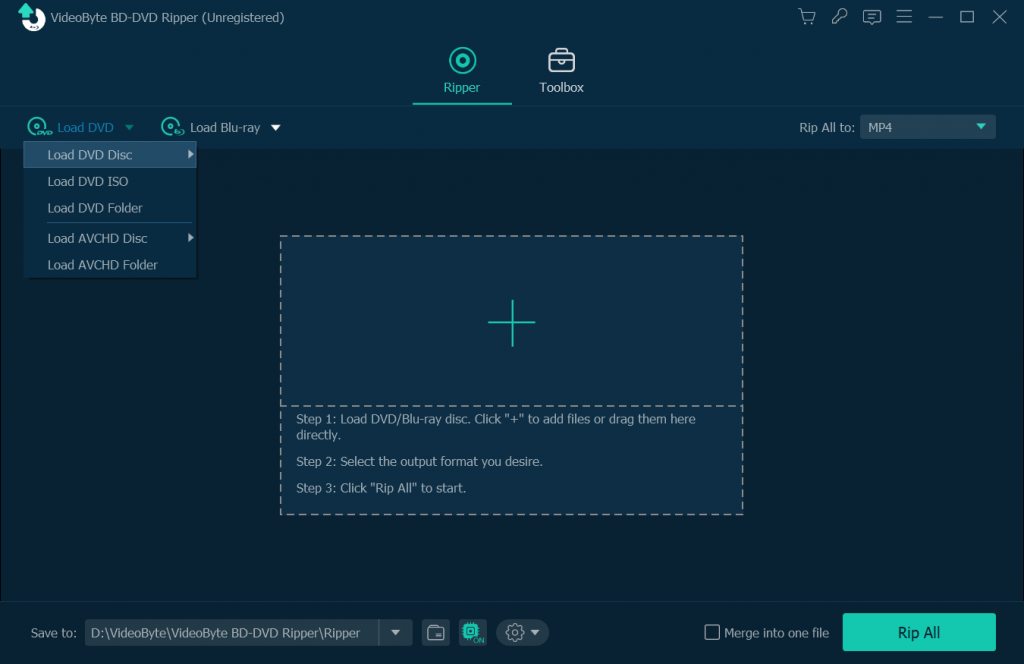
Step 1. Load DVD Disc/DVD folder/IFO file
Load DVD disc from your computer’s DVD drive or import DVD files into the program. Input files supported DVD folder and ISO file.
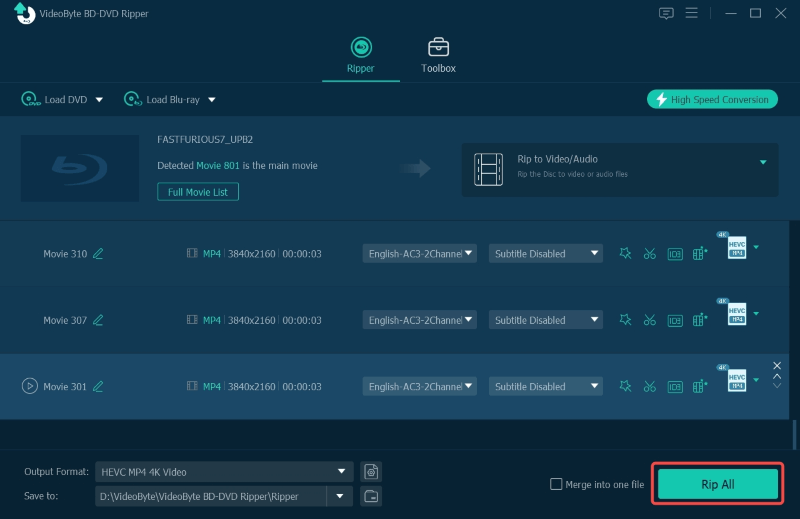
Step 2. Choose Output Format That Fixes Your Device
Select the output format for your device that you want to play. It covers more than 300+ output formats including common video formats and HD video formats.
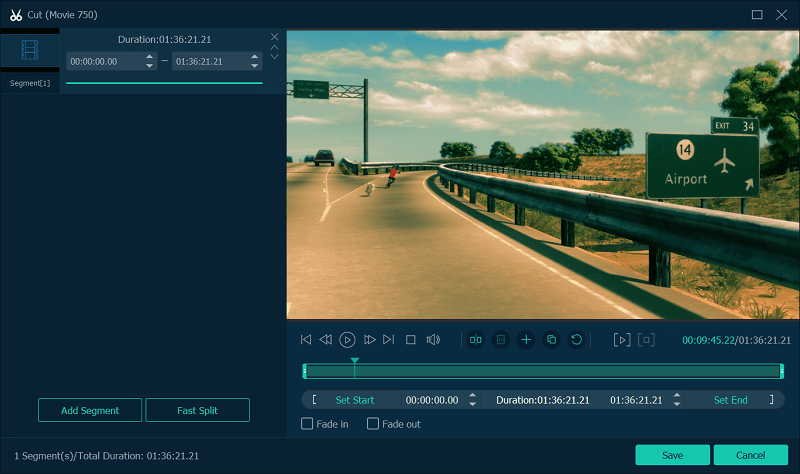
Step 3. Clip and Edit DVD Video before Ripping
Clip, edit and add effect are available in this DVD ripper. For example, click “Cut” icon in the main interface and drag two horizontal sliders to select the clip you want.
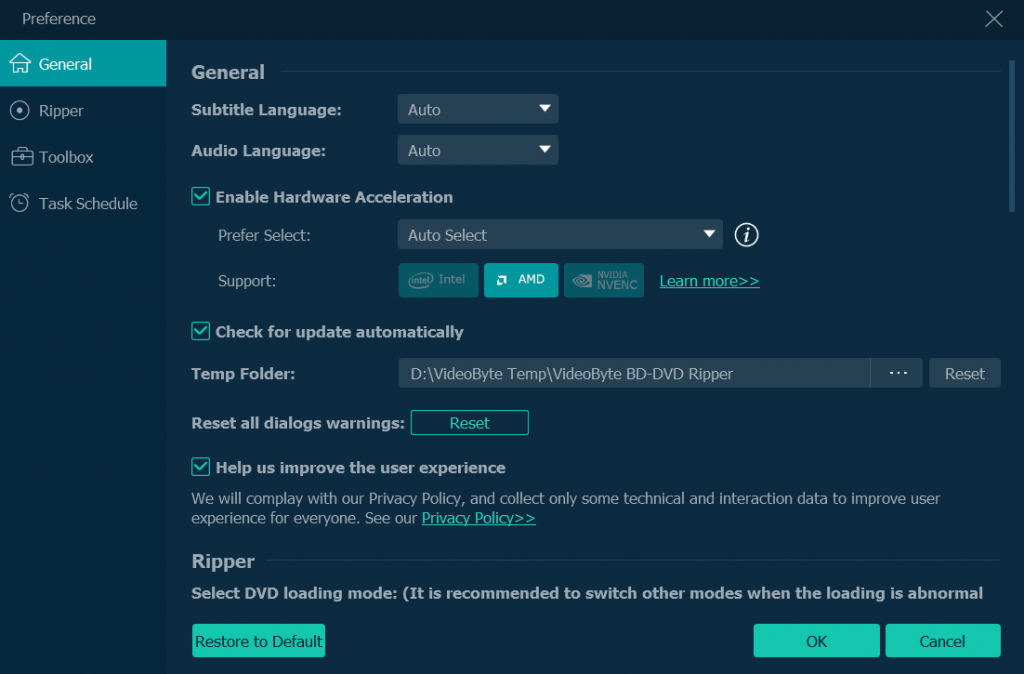
Step 4. Enable Hardware Acceleration Then Convert
Click menu on the upper right corner to pop up the “Preferences” window. Then you can enable hardware acceleration according to your computer’s graphics card. When everything is all set, click “Rip All” to rip DVD to computer.
VideoByte respects the copyright of commercial DVDs, and the program is only for personal use. The offline process will not read the DVD content or the user's private data.
WinX DVD Ripper can be used on both Windows and Mac, but it is undeniably faster and more effective for those who want to rip DVDs on Windows 10. The tool supports both old and new DVD models and delivers impressive ripping speed without placing heavy demands on your computer or RAM. It also works well with some damaged DVDs, making it a reliable option for salvaging video content.
Despite its powerful features, the interface of WinX DVD Ripper feels a bit outdated and lacks a modern touch. Mac users, in particular, may find it less intuitive and harder to navigate compared to the Windows version.
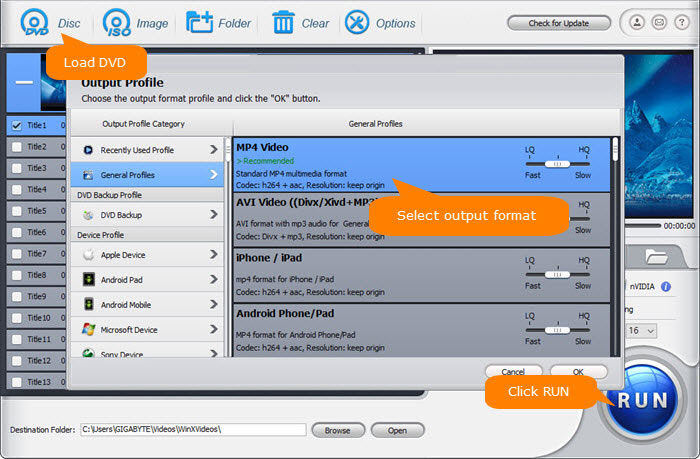
How to rip DVDs on your computer with WinX DVD Ripper?
1. Download and install WinX DVD Ripper.
2. Click DVD Disc to load your DVD and navigating to the DVD folder.
3. Select the output format for the video you want to convert. There are many presets to rip a DVD to the computer, and you can alter the file settings to suit tablets, phones, and more.
4. Choose the output folder. This is where the video file will be stored.
5. Click Start and this will begin the process of ripping the DVD and turning it into a file on your computer.
If you want to rip video from DVD to your computer at completely lossless quality, MakeMKV is the right option. The ripping will retain the full definition without compressing a bit for you. MKV is the only output encoder provided by the program – you can only export videos as the MKV format, which is one downside. Besides, the output files are mostly very large. It's inconvenient to save the files if your computer does not have enough space.
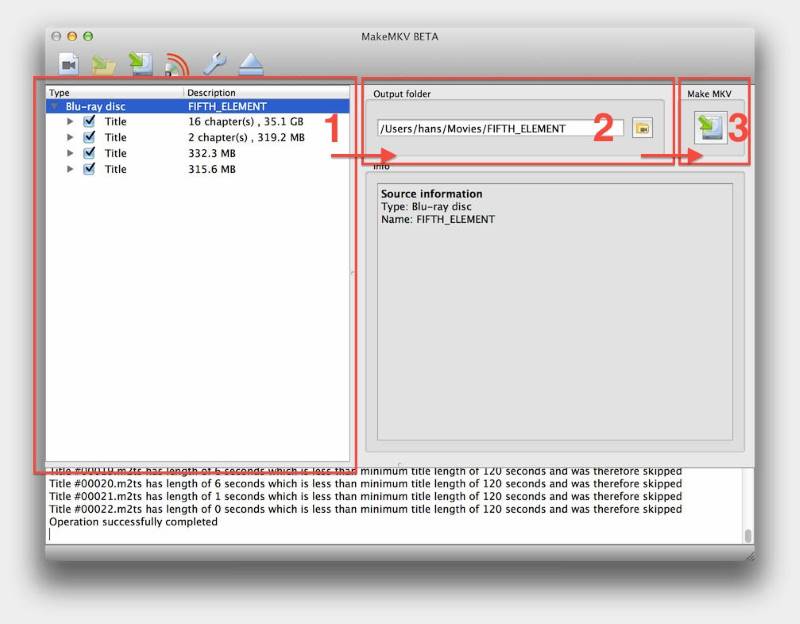
The steps below show how to rip DVD to computer using MakeMKV:
Step 1. Complete the installation and launch MakeMKV on your desktop.
Step 2. Insert the DVD disc. After MakeMKV detecting it, you can select the chapters to rip.
Step 3. Confirm an output path to save the exported digital video.
Step 4. Press the Make MKV button now, and it will begin the DVD ripping process .
VLC is a free media player with the powerful ability to play regular media and DVD content. More conveniently, the program brings a hidden ripping feature, helping you to rip video from DVD to digital formats without any extra charge required. However, although VLC has built-in libdvdcss to read the data on protected DVDs, it fails to rip encrypted DVDs by default. If you have commercial DVDs, try to use other advanced DVD rippers with decoding and decrypting technology.
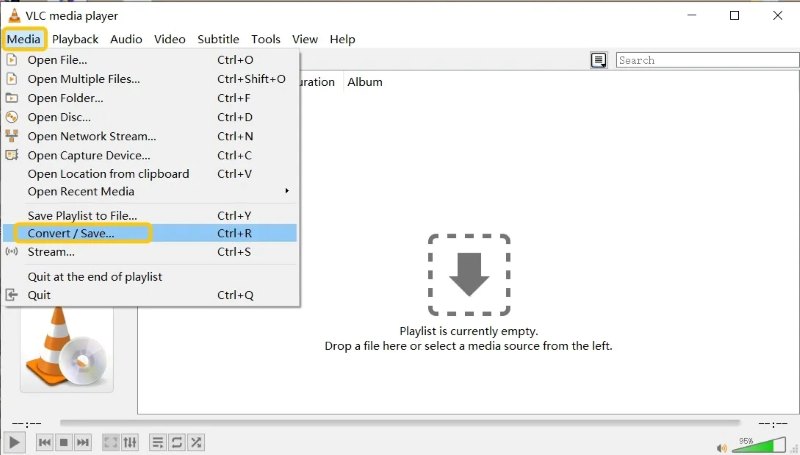
Let' us see how to use VLC to rip a DVD to your computer.
Step 1. Install VLC on your computer. Then insert the DVD you gonna rip and open the program.
Step 2. Select Media > Convert/Save > Disc to load the inserted DVD disc to prepare the ripping.
Step 3. Tap the Convert/Save In the next procedure, please configure an encoder to export the media.
Step 4. confirm ripping and wait for VLC to complete the process for you.
Another free choice to rip DVDs to Windows or Mac computers is Handbrake. It supports converting both Blu-ray and DVD with powerful functions and multiple output formats. It can customize settings to achieve your personal hobbies, giving you a satisfying result. However, it often fails to decrypt copy-protected DVDs and needs to install libdvdcss files or other third-party software.
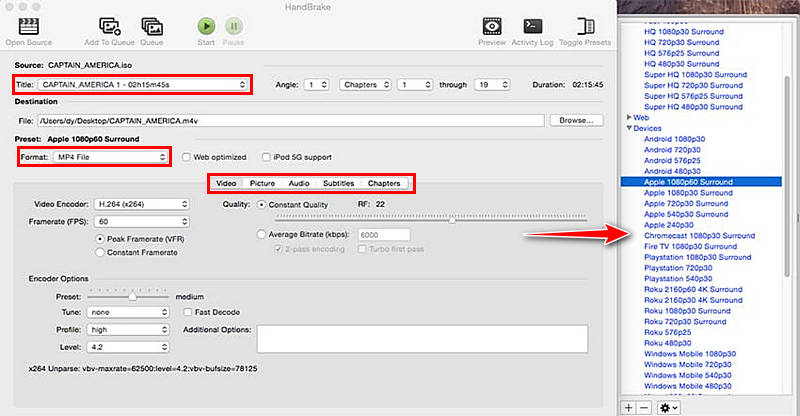
Here’s how to convert a DVD to MP4 via HandBrake.
Step 1. Insert the DVD disc and run Handbrake on your computer.
Step 2. In Handbrake, click on the Open Source button to load the DVD.
Step 3. Then, adjust the ripping settings as you need, like subtitles or audio tracks before ripping the DVD disc.
Step 4. Click Start Encode to begin with the ripping process.
| Features | VideoByte BD-DVD Ripper | WinX DVD Ripper | MakeMKV | VLC Media Player | HandBrake |
|---|---|---|---|---|---|
| Supported DVD Protection | APS, CSS, ARccOS, CPRM, AACS, BD+, Cinavia, and Region Codes | CSS, region code, RCE, and Sony ARccOS | AACS, CSS, Region Code | CSS, Region Code | CSS, Region Code |
| Output Quality | 1080p HD & 4K | 1080p | 720p | 720p | 480p/720p/1080p |
| Output Formats | MOV, MKV, MP4, MP3, AAC, M4A, etc. | MP4, AVI, WMV, FLV, MOV, MPEG, MP3, etc. | MKV | MPEG, AVI, WMA, MP4, MOV, MKV, etc. | MP4, MKV, and WebM |
| Ripping Speed | 6× | 47× | Medium | Slow | Slow |
| GPU Acceleration | ✅ | ✅ | ✅ | ❌️ | ❌ |
| Video Editor | Customize audio tracks and subtitles, cut, crop, rotate, merge, adjust effects, add filters, and add a watermark. | Customize subtitle, audio, trim/crop/merge, etc. | ❌️ | subtitle synchronization, video, and audio filters. | Video filters |
| OS | Windows 11/10/8.1/8/7/XP, Mac OS X 10.11 or higher | Windows 11 or lower, macOS Tahoe (26) or lower | Windows XP or later, x86 or x64, Mac OS X 10.7 or later, and Linux | Windows, Mac OS X, and Linux | Windows 10 or later, macOS 10.13 or later, and Linux |
Q1: Is it legal to rip a DVD?
A: It depends on. Ripping a DVD for personal use, like format conversion or backup, is usually permitted in many regions. However, converting commercial DVDs for distribution and sale is restricted in certain countries. Always check your local regulations before proceeding.
Q2: How do I rip the DVD with 1:1 original quality?
A: To achieve a lossless copy, you can rip the disc to ISO Image or Video_TS folder formats. If you prefer a single file, choosing MKV (Lossless) or MP4 with high-bitrate HEVC/H.264 encoding will retain the original 4K visual effects and Dolby Atmos audio tracks.
Q3: How long does it take to rip a full DVD?
A: To rip a full, standard DVD, typically relying mostly on the CPU, takes between 10 and 30 minutes, even up to an hour. It depends on your disc size and computer performance. A good ripper with GPU acceleration, like VideoByte BD-DVD Ripper and WinX DVD Ripper, can complete the process in 5 to 10 minutes.
So this is my all-time favorite method as well as one of the best ways to rip DVD to your computer. It is fast because of the excellent software algorithms & hardware acceleration. Is this article useful for you? How do you think about VideoByte DVD Ripper? You are welcome to leave the comments below.
Hot Articles
by in 6 November, 2024
by in 1 November, 2024
by in 21 April, 2026

 English
  Korean
  Dutch
Dutch  Chinese
  Italian
  Spanish