





The Only Ripper to Support Both DVD & Blu-ray
Forward this article:



Blu-ray discs provide a stunning viewing experience with extremely clear image details. Meanwhile, it is also a costly investment since it may be scratched, damaged, or even become completely unusable. Many people are seeking a more convenient and credible way to manage and preserve Blu-ray videos. To do so, you can rip Blu-rays locally forever. Today, we will show you the 4 best methods to rip Blu-rays to lossless digital files on both Mac and Windows. Let's scroll down and start your Blu-ray ripping journey.
You are probably aware that ripping Blu-rays often fails. That's because DRM protections of Blu-ray, like AACS, BD+, etc., prevent unauthorized copying and safeguard the disc content. Therefore, understanding what Blu-ray protection entails and being prepared for ripping and decrypting Blu-ray is essential.
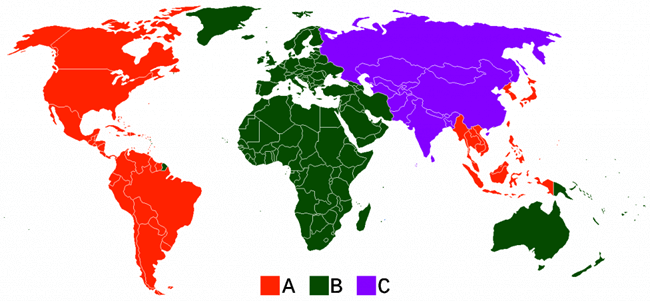
Blu-ray discs are protected by region codes (Region A, Region B, Region C), a class of DRM (Digital Rights Management) that prevents the use of Blu-ray discs in certain regions. For example, when you try to play a Blu-ray movie encoded for a region other than the region where the Blu-ray player is configured, a code lock error message will appear.
• Your Blu-ray source discs.
• Available Blu-ray drive: To rip Blu-ray to your PC, you will need a hard drive that can read Blu-ray discs, since DVD drives are not powerful enough.
• Enough storage space: Blu-ray can take up a lot of storage space, so you need to make sure your drive has enough space to store the files ripped from the Blu-ray disc.
• A program that can rip Blu-ray: A powerful Blu-ray Ripper can help you convert Blu-ray to digital formats of high quality. Here we list four useful methods with workable Blu-ray rippers.
When it comes to the best solution to rip Blu-ray with no limits, VideoByte BD-DVD Ripper stands out. With advanced decryption technology, it can remove all the latest protections such as APS, CSS, ARccOS, CPRM, AACS, BD+, Cinavia, and region codes, making Blu-ray videos playable on all devices. As a versatile ripping solution, it supports ripping all types of Blu-ray to over 300 mainstream video/audio formats like MP4, MOV, AAC, MP3, etc. You can choose MKV Lossless mode to rip Blu-ray at a 1:1 ratio, enabling you to enjoy digital videos with original quality. Also, this Blu-ray ripper allows you to keep or select all the audio tracks/subtitles and custom output parameter settings as you need, like aspect ratio, bitrate, frame rate, video/audio encoder, audio channels, and more. Besides, you can also personalize the converted video within its built-in video editor for creative effects.
 Pros
Pros
 Cons
Cons
You can follow the next step-by-step guide or watch the how-to video at the top of the page.
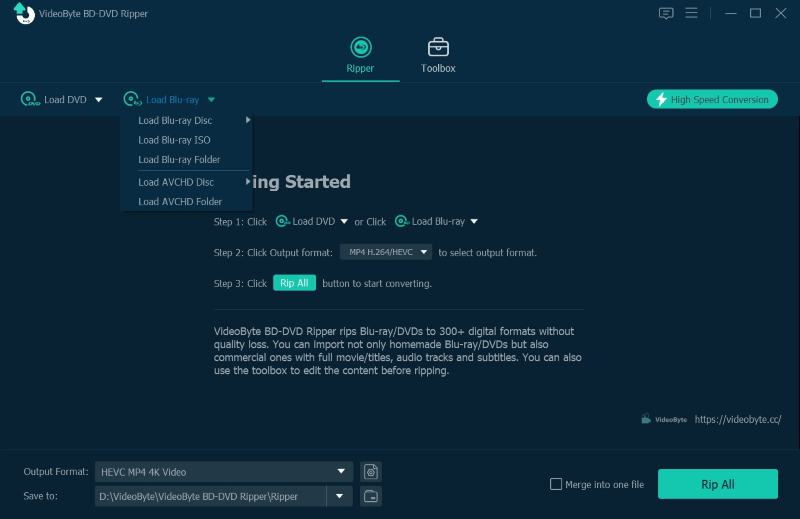
Step 1. Load Blu-ray Videos
Insert the target disc into the available Blu-ray drive that is connected to your computer. You can click on Load Blu-ray to add a Blu-ray source or directly drag and drop it into the software.
Step 2. Select an Output Format
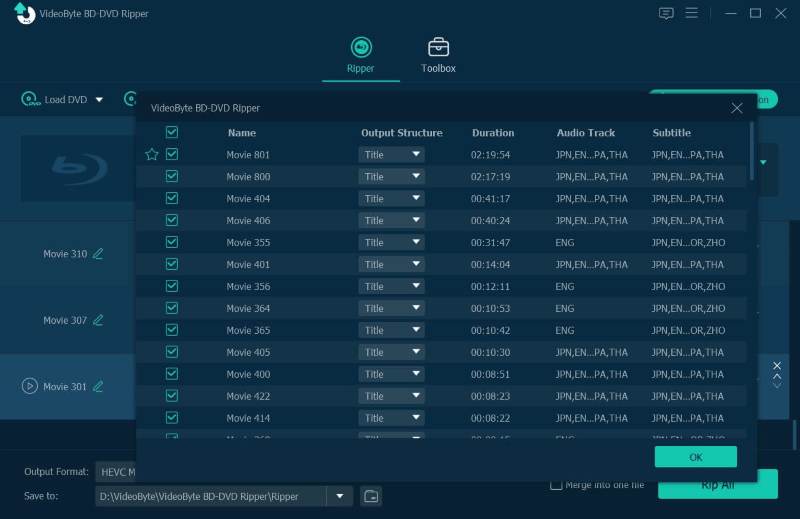
Click Rip All to from the drop-down menu to choose a desired format like MP4. For more modifications, you can move to the Preferences section to make it clear.
Step 3. Rip Blu-ray Disc
Click the Rip All button to start ripping Blu-ray to a digital format. When it ends, you can find ripped Blu-ray videos lying in the output folder you set.
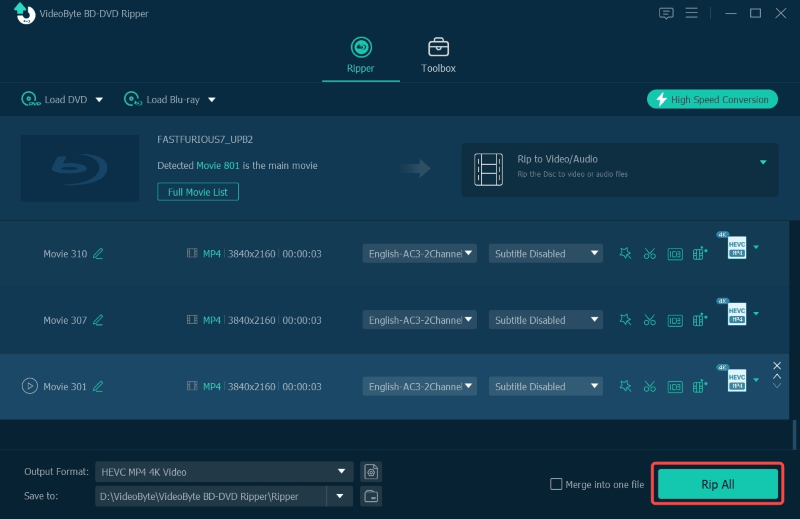
When ripping a 4K Blu-ray disc, it is recommended to use a regular Blu-ray drive that is "4K friendly" rather than a 4K Blu-ray drive. This is because most 4K Blu-ray drives are unable to rip 4K Blu-ray discs due to increased copy protection. Once done, pick a 4K Blu-ray Ripper like VideoByte BD-DVD Ripper for a smooth conversation. Please make sure that there is enough space on your device to save ripped Blu-ray videos, as higher video resolutions result in larger file sizes.
User Review
Rating from Trustpilot: 4.3/5 ⭐⭐⭐⭐
"Downloaded file, installed easily, works smoothly on my iMac, has read every DVD and Blu-ray disc I've thrown at it (about 65 or more), and RIPs look terrific." — Paul Tabili in US (Oct 16, 2025)
"Program makes great copies and it's fast, under an hour per disk. Works fine, lasts a long time and doesn't roll over backwards. Ripped 6 movies today, 3 Blu ray, 3 DVD with excellent results." — Patrick Socia in Philippines (Oct 3, 2025)
HandBrake, a well-known free video transcoder, is one of the most commonly used tools for ripping Blu-ray files. As a cross-platform open-source Blu-ray ripper, it converts Blu-ray videos to several digital formats for Windows, Mac, and Linux users. However, note that the software has strict restrictions on ripping encrypted Blu-ray discs, which means you have to follow copyright regulations and can only use it to rip recorded, burned, or homemade Blu-ray discs.
Pros
Cons
If you still want to use HandBrake to rip copy-protected Blu-rays, you'll need to download extra plugins to help you. Let's take a look at the detailed steps for ripping an unprotected one below.
Although Blu-ray movies provide an excellent watching experience, they take up a lot of storage space. You can compress those videos to a smaller size while maintaining high-definition image quality with HandBrake.
Step 1. Open the Blu-ray video and pick a preset on the right side for saving hard drive space.
Step 2. Move to Output Settings, and select MP4 as the output container.
Step 3. Click Start Encode to compress Blu-ray movies.
User Review
Rating from Trustpilot: 3.4/5 ⭐⭐⭐
"…it was my saviour when converting my entire James Bond Collection of Blu-ray discs to MP4s…the video quality look better than my old converter at the same file size…" — Devil Jin in UK, Apr 18, 2023
"this is an undeniably powerful tool that can handle just about any homemade DVDs. Doesn't work for new releases." — Rico Rodriguez in US, Apr 29, 2022
If you need to rip Blu-ray, MakeMKV is definitely on your shortlist. This freeware can rip both unprotected and protected Blu-rays to MKV lossless format with all details, offering a high-quality viewing experience on Windows and Mac.
Since MKV preserves the original quality of the video, the file size will be relatively large. And some devices or media players are not compatible with the 4K MKV format. Therefore, if you want to rip 4K Blu-ray videos and transfer them to any device for playback, please make sure the device matches this video format and has enough free space.
Pros
Cons
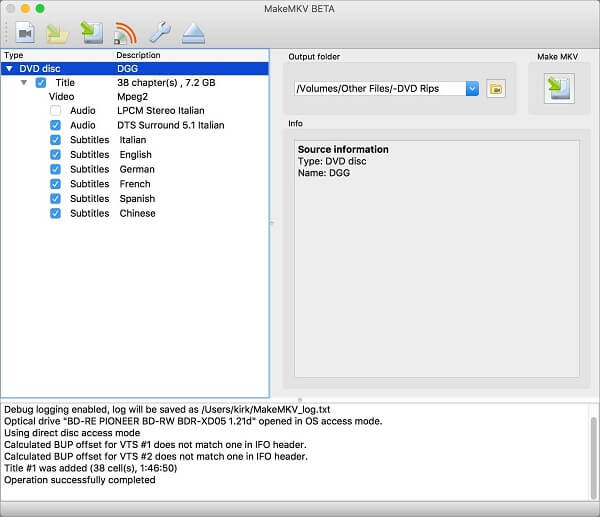
Step 1. Launch the MakeMKV program on your computer. Then, connect the Blu-ray disc to your computer via a workable Blu-ray drive.
Step 2. MakeMKV will take some time to scan your computer for optical drives automatically. After that, you can see your Blu-ray source is on the list.
Step 3. Select the Blu-ray content you want to rip from the left panel. Then, preset the output folder based on your needs in the upper right section.
Step 4. Click “Make MKV” to rip Blu-ray to MKV.
User Review
Rating from Trustpilot: 3.7/5 ⭐⭐⭐
"Software is fine but claims to be "free" whilst randomly stopping working every time the key expires…" — Chris Clayton in UK, Aug 1, 2025
"Fantastic converter that freely lets me digitalize my physical media…the lack of support for new content. But given this is 100% freeware I'd say a bit of patience is worthwhile." — Dan in AU, Feb 16, 2024
VLC is an open-source media player that can play most video formats without installing a codec package. Moreover, it comes with a function that can convert Blu-ray discs into digital formats like MP4 on most platforms, such as Windows, Mac, Linux, Android, and so on. However, not all Blu-ray discs are supported by VLC. Blu-ray discs with DRM protections like AACS and BD+ are not allowed. If you want to rip protected Blu-ray disks, you'd better choose other professional tools like VideoByte BD-DVD Ripper.
Pros
Cons
Step 1. Insert your Blu-ray disc into the disk drive in your laptop or computer.
Step 2. Open VLC and click “Media” on the navigation bar to select “Convert/Save“.
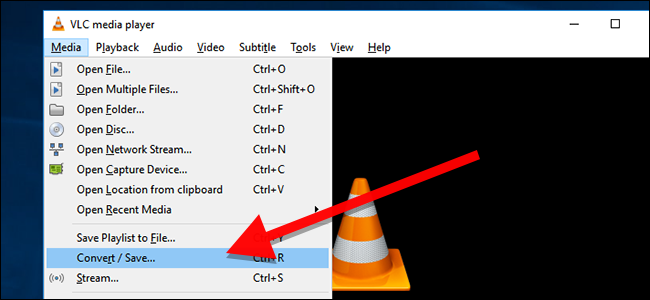
Step 3. On the pop-up window, move to the “Disc” tab. Select “Blu-ray” in the Disc Selection section. Then, click the drop-down menu or “Browse” to select your Blu-ray source. Last, click on the “Convert/Save” button to confirm your settings.
Step 4. Set the output quality in the “Profile” drop-down menu and determine the saving path in the “Destination file”.
Step 5. Hit the “Start” button to start ripping Blu-ray.
User Review
Rating from Trustpilot: 3.7/5 ⭐⭐⭐
"Blu-ray support in VLC is relatively good for a free program, but the problem is copying protection. To bypass AACS…you either need the disc's individual decryption key and the libaacs library…" — Erufailon4 from Reddit.
| Software | Best for | Decryption | Output Formats | Video Quality | Supported OS | GPU Acceleration |
|---|---|---|---|---|---|---|
| VideoByte BD-DVD Ripper | Ripping all types of DVD/Blu-ray discs with high quality. | APS, CSS, ARccOS, CPRM, AACS, BD+, Cinavia, Region Codes | 300+ | 4K | Windows 11/10/8.1/8/7/XP & MacOS X 10.7 or higher | ✅️ |
| HandBrake | Homemade and unprotected Blu-ray ripping. | ❌️ | MP4, MKV, and WebM | 1080p | Windows 10 or later, macOS 10.13 or later, Linux, and other | ❌️ |
| MakeMKV | Rip Blu-ray discs to MKV files. | AACS and BD+ | MKV | Medium | Windows, Mac OS X, and Linux | ✅️(Complex setup) |
| VLC | Free to play and rip Blu-ray across various devices. | ❌️ (need extra files, specifically libaacs and a key database) | 19 | Medium | Windows XP SP3 or later & MacOS X 10.7.5 or later | ❌️ |
Verdict:
I have ripped a 30GB Blu-ray disc on my PC (Intel i7/16GB RAM), VideoByte took 20 minutes with only 20% CPU usage. MakeMKV remained stable but produced a large file. In contrast, HandBrake consumed CPU to 98% and took over an hour, while VLC frequently crashed mid-process.
Q1: Is it legal to rip a Blu-ray disc?
A: Depends on. In some countries and regions, the Digital Millennium Copyright Act (DMCA) makes it illegal to unlock the copyright protection agreement (DRM) for ripping DVDs/Blu-rays. But it is always allowed to do so for personal backup purposes without distribution or commercial profit.
Q2: Which format balances quality-to-size after ripping?
A: The best choice with the majority is to rip Blu-ray discs to MP4 (H.264) files. MP4 is a common format that balances file size and image quality. You can keep forever and play smoothly converted videos with high visual clarity on almost all smart TVs, mobile devices, or other devices, making it the preferred preset for most users' digital collections.
Q3: How to handle "copy-protected" errors?
A: The most effective way to deal with encrypted discs is to use a professional Blu-ray ripper that can automatically bypass most encryptions, such as VideoByte BD-DVD Ripper. It can remove APS, CSS, ARccOS, CPRM, AACS, BD+, Cinavia, or the latest region codes in real time. Users can directly read and rip protected commercial Blu-ray discs without manually installing complex third-party plugins.
This post demonstrates four effective methods to rip Blu-ray. When it comes to a simple but professional solution, we would like to pick Videobyte BD-DVD Ripepr as our first option. Also, useful tips are offered to help you have a better Blu-ray viewing experience. Now, it is your time to have a try!
Hot Articles
by in 6 November, 2024
by in 1 November, 2024
by in 9 April, 2026

 English
  Korean
  Dutch
Dutch  Chinese
  Italian
  Spanish