

Enjoy Cinematic Blu-ray Movie Playback
Forward this article:



You've just downloaded a high-quality 4K movie, but when you open it, you are greeted with a black screen, choppy audio, or a frustrating error message saying the format isn't supported. This is a common headache with HEVC (High Efficiency Video Coding, or H.265). While it compresses 4K videos to half the file size of older H.264 clips, it requires significant processing power and specific built-in codecs to play smoothly.
If you are looking for a reliable HEVC player, here is our quick verdict after testing 5 different tools on Windows 11 and macOS Sequoia:
VideoByte Blu-ray Player delivers the absolute smoothest, stutter-free 4K HEVC playback using advanced GPU acceleration. However, if you strictly want a 100% free, open-source tool, VLC Media Player remains the best alternative—though it has a few caveats with high-bitrate files. Below, we break down our real performance data, hands-on testing notes, and a detailed comparison to help you choose the right one.
To give you transparent and accurate recommendations, we didn't just copy features from official websites. We spent a weekend putting these players through a rigorous hardware benchmark.
Our Test Rig: Dell XPS 15 (Intel Core i7-13700K, 32GB RAM, NVIDIA RTX 4060 GPU) running Windows 11 Pro, and a MacBook Air (M2, 16GB RAM) running macOS Sequoia.
Test Files: A 12-minute 4K H.265 10-bit video clip (60fps, ultra-high bitrate) and a standard 1080p HEVC file.
Evaluation Criteria: We monitored CPU usage during 4K playback, startup speeds, subtitle rendering accuracy, and whether any frame drops or lag occurred.
To save your time, here is a structured breakdown of how the top 5 HEVC players stack up in our real-world testing.
| Best For | Operating System | Max Resolution | 4K CPU Usage (Avg) | Price | |
|---|---|---|---|---|---|
| VideoByte Blu-ray Player | Premium 4K Smoothness & Discs | Windows 11/10, macOS 10.9+ | 4K UHD | 8% | Free Trial / Paid |
| VLC Media Player | Cross-Platform Open Source | Windows, Mac, Linux, Android | 4K / 8K | 22% | Free |
| PotPlayer | Windows Power Users & 3D | Windows 11/10/8.1/7 | 4K UHD | 12% | Free |
| Leawo Blu-ray Player | Basic Free Playback (With Ads) | Windows 11/10, macOS | 4K UHD | 18% | Free (With Ads) |
| 5KPlayer | Wireless AirPlay + Downloader | Windows 11/10, macOS | 4K / 8K | 15% | Free (With Ads) |
Best for: Users who want flawless, cinema-grade 4K HEVC playback and cross-format compatibility without stuttering.
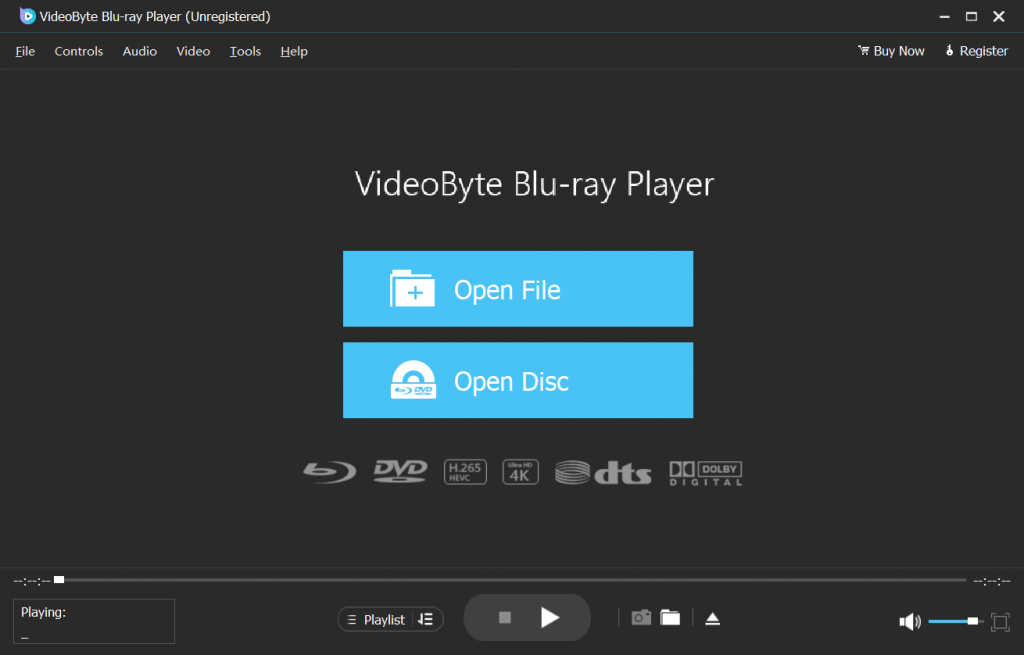
In our internal tests, VideoByte Blu-ray Player easily took the top spot. While playing our heavy 4K HEVC 60fps sample file, it utilized hardware-level GPU acceleration flawlessly, consuming only 8% of our CPU. The playback was butter-smooth from start to finish, even when jumping forward or backward in the timeline. Beyond standard H.265 files, VideoByte is an all-in-one powerhouse that unlocks both commercial and homemade Blu-ray discs, DVD folders, ISO files, and over 300 mainstream media formats. Its interface is clean, modern, and entirely free of intrusive ads.
 Pros
Pros
 Cons
Cons
Best for: Cross-platform users who want a 100% free media player without commercial strings attached.
"Does VLC play HEVC?" If you’ve ever asked the question, the answer will be positive. If you desire a free HEVC player to play HEVC files without paying a penny, VLC is one of the best HEVC VLC players you should not miss. Developed by VideoLAN, VLC Media Player offers robust media streaming with wide support for mainstream formats, including HEVC, so you can enjoy HEVC video playback without limitations. VLC is also cross-platform and available for Windows, Mac, Linux, and Android users to install on their devices and enjoy its excellent video streaming services.
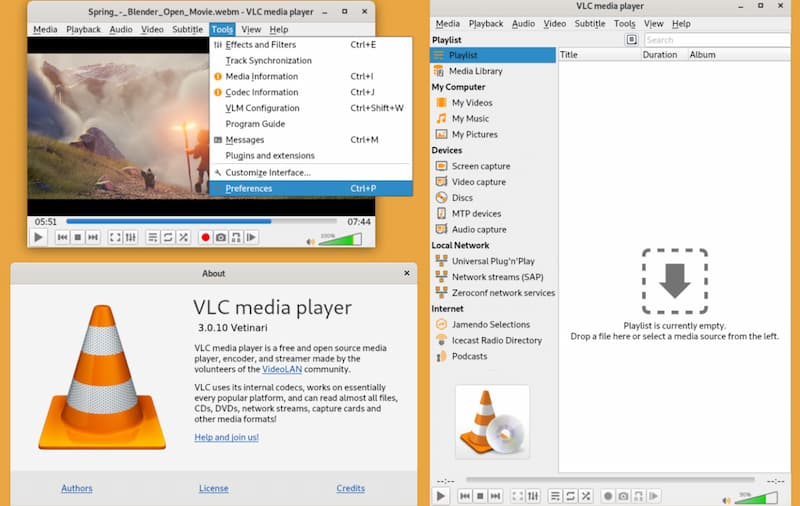
However, note that if you want to play HEVC videos in VLC, you need to download x265, a free software library and application for encoding video streams into the HEVC compression format. Otherwise, HEVC video playback is likely to fail, and you will have to find another VLC alternative to play HEVC videos.
 Tips
Tips
VideoLAN also produces the free encoder x265 to help you stream your video in the HEVC format. You can learn more about it if needed.
Pros
Cons
Best for: Windows gamers and enthusiasts who love deep customization and need 3D video support.
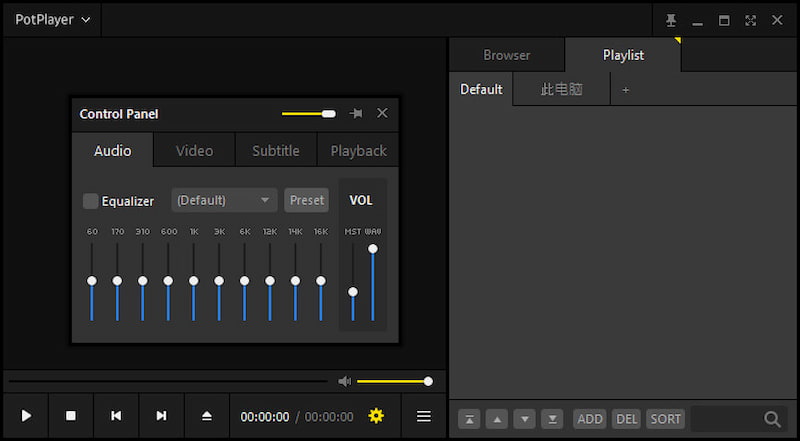
Potplayer is another free HEVC player with high-quality playback that lets you stream HEVC-encoded videos on Windows desktops. Potplay even supports 3D effects! If your HEVC video files also include 3D effects, this H265 player can render them, preserving the same visual and audio effects. Despite HEVC, Potplay is also compatible with a variety of other multimedia formats and codecs, such as H.264, MP4, AVI, and MKV. However, it’s a pity that this HEVC player is only available on Windows. Its official website still says it only supports Windows 8.1 and earlier, but many users claim it works well on Windows 11/10. So feel free to download it if you are a Windows user!
Pros
Cons
Tips
When Potplayer lacks a Mac version, if you want to install an HEVC player to enjoy high-quality HEVC video playback on Mac desktops, VideoByte Blu-ray Player is a good backup option. For more details, visit this full VideoByte Blu-ray Player review to evaluate the software in-depth before installing it.
Best for: Casual viewers looking for a free alternative who do not mind interface advertisements.
Another HEVC video player here for you is Leawo Blu-ray Player, which was originally famous for its Blu-ray streaming ability. Also, with a free version provided, it is regarded as one of the best free Blu-ray players on the market. Like VideoByte Blu-ray Player, Leawo is also compatible with a variety of mainstream formats, including HEVC, ensuring you enjoy 4K HEVC video playback on both Windows and Mac desktops.
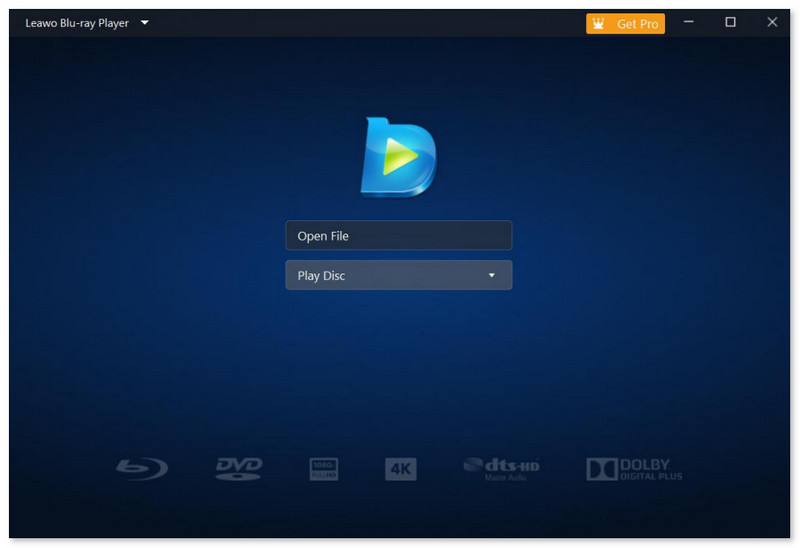
However, the drawback of the Leawo Blu-ray player is that it adds ads to the interface unless you upgrade to its registered version. Meanwhile, when playing HEVC videos for free in this HEVC player, a watermark is added, which can affect the streaming and give you a less-than-perfect experience.
Pros
Cons
Best for: Users who want built-in video downloading and wireless AirPlay streaming in one app.
5KPlayer can be one of the best free HEVC players, as it uses advanced decoding technology to ensure smooth 4K or even 8K HEVC video playback, even on old computers. This can help you easily resolve the 'unable to open HEVC videos' issue. Moreover, this HEVC player supports multiple HEVC-encoded formats, including MP4, MOV, MKV, AVI, and more, making it a great choice for users with diverse HEVC collections.
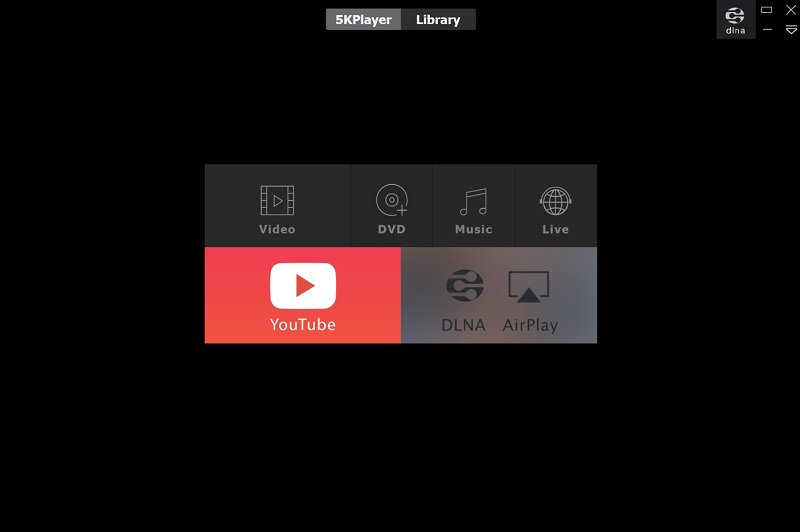
Additionally, it's not just a HEVC video opener; it also lets you download videos directly from Facebook, Vevo, Vimeo, and more. Plus, it supports AirPlay for wireless projection to your devices. However, as with many free tools, 5KPlayer may experience occasional unstable performance or even contain malware. Therefore, it is crucial to consider these potential drawbacks before downloading.
Pros
Cons
Selecting the best HEVC player is the most direct and convenient way to help you play HEVC files on Windows/Mac with ease. But if you don’t want to download a dedicated HEVC video player, you can try the 2 tips in this section to play HEVC videos more conveniently.
To permanently save and play your HEVC videos without downloading an HEVC player, a good option is to convert them to MP4 or another format supported by your installed media player. That means you won’t need the exact x265 player software with HEVC compatibility anymore. Instead, finding a reliable x265 converter that can convert x265 files to formats like MP4, AVC, MKV, MOV, etc., can help permanently eliminate format incompatibility. If you would like to have a try, you can check the post introducing free H.265 converters and find the one you like.
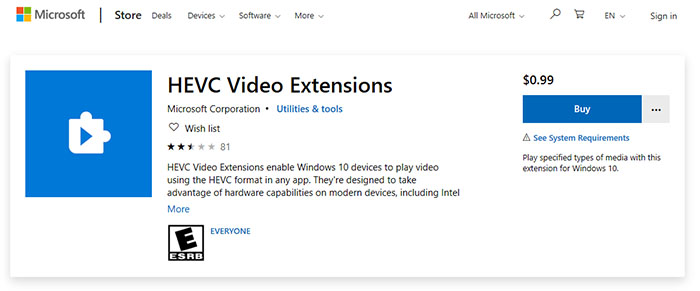
Despite using HEVC players or HEVC converters to get your videos playable, you are also able to take advantage of an HEVC video extension. The HEVC Video Extension enables compatible Windows 10 devices to play HEVC video in any app, including 4K and Ultra HD content.
But we also find that some users claim this extension does not work for them, even after paying for it. So, you may need to think twice before using it.
Q1: Which is the best HEVC player for Windows 11?
A: Based on our performance tests, VideoByte Blu-ray Player is the best choice for premium, lag-free 4K playback, thanks to its low CPU utilization of 8%. For a completely free, open-source choice, VLC Media Player is highly recommended, though it may consume more CPU on heavier files.
Q2: Does VLC support HEVC on Mac out of the box?
A: Yes, VLC for macOS supports HEVC natively. However, if you are playing ultra-high-bitrate 4K or 8K HEVC clips, you may experience stuttering or battery drain on older Macs. If VLC struggles, switching to a player with deep hardware optimization like VideoByte will resolve the lag.
Q3: Are HEVC and H.265 the exact same thing?
A: Yes. H.265 is the official technical title given by the ITU-T standards organization, while HEVC (High Efficiency Video Coding) is the marketing name used by the industry. They refer to the same video compression standard.
Q4: Is 5KPlayer safe to install on my computer?
A: 5KPlayer is safe from severe viruses, but it contains many ads. It often pushes desktop pop-up notifications and bundles unrequested software during setup. For a completely clean and secure experience, we recommend sticking to VideoByte or VLC.
When you discover that your installed media players fail to support HEVC decoding and playback, you probably need a better, more professional HEVC player. In this blog, 5 options are recommended for you to choose from. Among all of them, VideoByte Blu-ray Player definitely stands out, providing a high-quality, smoother, and easier-to-control streaming experience. Why not give it a try now?
Hot Articles

 English
  Korean
  Dutch
Dutch  Chinese
  Italian
  Spanish