




 Lafanda
 5 June, 2026
Play Blu-ray/DVD
5 June, 2026
Play Blu-ray/DVD

Enjoy Cinematic Blu-ray Movie Playback
No, Microsoft removed native DVD playback support and the MPEG-2 decoder from both Windows 10 and 11. To watch your DVD collection, you need to install a reliable third-party media player like VLC Media Player (free for unencrypted discs) or VideoByte Blu-ray Player (for commercial and region-locked discs), or use a dedicated DVD ripper to digitize your optical media for flexible playback.
Since many PCs installed with Windows 10/11 systems don’t come with a built-in DVD drive, you need to buy an external drive in order to play DVD on Windows 10/11 computers. But soon you may also notice that your DVD is possible to not be detected automatically every time you insert it into your PC. It’s kind of confusing, causing many of you ask “why my computer won’t play DVD?”
Actually, the key to play DVD on Windows 10/11 computers smoothly without any error is not a tough job. The only thing you need to do in advance is to select a reliable DVD player software. Therefore, today’s post has brought 4 handy ways guiding you on how to play DVD on Windows 10/11 computers with easy manipulation. Now, scroll down to dive into reading and get ready for playing DVD on Windows 10/11 effortlessly!
To provide you with completely honest and actionable recommendations, we tested each method under rigorous, real-world conditions. We conducted our benchmarks on a Dell XPS desktop running Windows 11 (version 24H2) and a Lenovo ThinkPad running Windows 10, using both internal and external USB 3.0 optical disc drives. Each software was evaluated based on quantitative criteria, including decryption capabilities against commercial copy protections, system performance (ensuring CPU utilization stays under 15%), audio codec support, and overall playback fluency.
Since Windows 10 and 11 do not include a native DVD decoder, VLC successfully bridges the gap by providing its own internal codec ecosystem. It reads unencrypted DVDs from your drive without additional downloads. For physical media, it uses built-in helper tools like libdvdcss to handle simple decryption. However, users looking to play commercial Blu-ray discs or protected DVDs may find it less convenient, as it requires external database files and dynamic libraries.
Step 1. Download and launch VLC, and put your DVD into your disc drive.
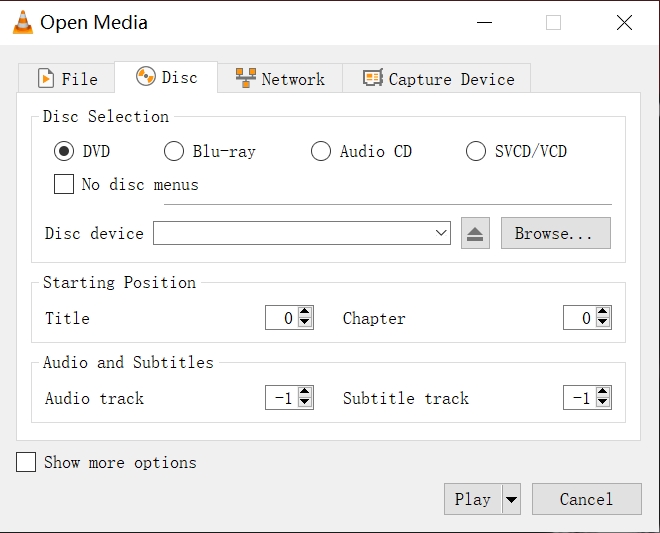
Step 2. Choose Media > Open Disc, and select DVD. Then, you can click Browse to select the Disc device or VIDEO_TS folder, and VLC will detect it.
Step 3. After you adjust the settings, just click OK. And you can enjoy DVD playback on Windows 10 with VLC.
 Tips
Tips
By comparison. VLC sometimes functions less stably. If you wish an alternative to VLC to play DVD on Windows 10/11 with smoother experience, you’d better turn to another more professional player to help.
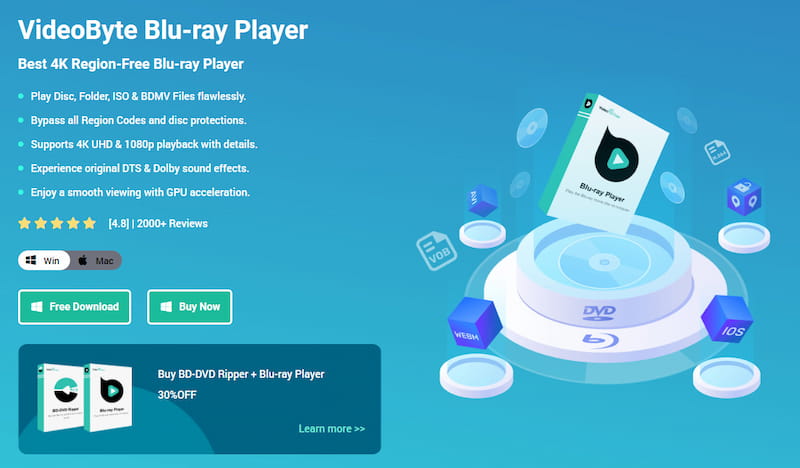
VideoByte Blu-ray Player is this incredible, region-free Windows and Mac media player that provides you with an entire home cinema experience right on your desktop. It plays all types of Blu-ray discs, folders, and ISO images, as well as DVDs—such as normal DVD discs and files—so VideoByte bypasses all those pesky region codes and retains the original menus, so it is very easy to use. It supports GPU acceleration, so you have smooth 1080p HD and 4K UHD playback with no interruptions, and with the integrated Dolby and DTS audio decoding, the audio is crystal clear. And it plays other popular video formats like MP4, MKV, and AVI, so it is your go-to for high-quality media playback on Windows 10 and 11.
Now, please follow the video guide below to master how to play DVD on Windows 10/11 computer using VideoByte Blu-ray Player:
For more detailed manipulation guide, also refer to the following instructions to try playing DVD on Windows 10/11 in the program.
Step 1. Insert DVD Disc to Windows 10/11 Computer
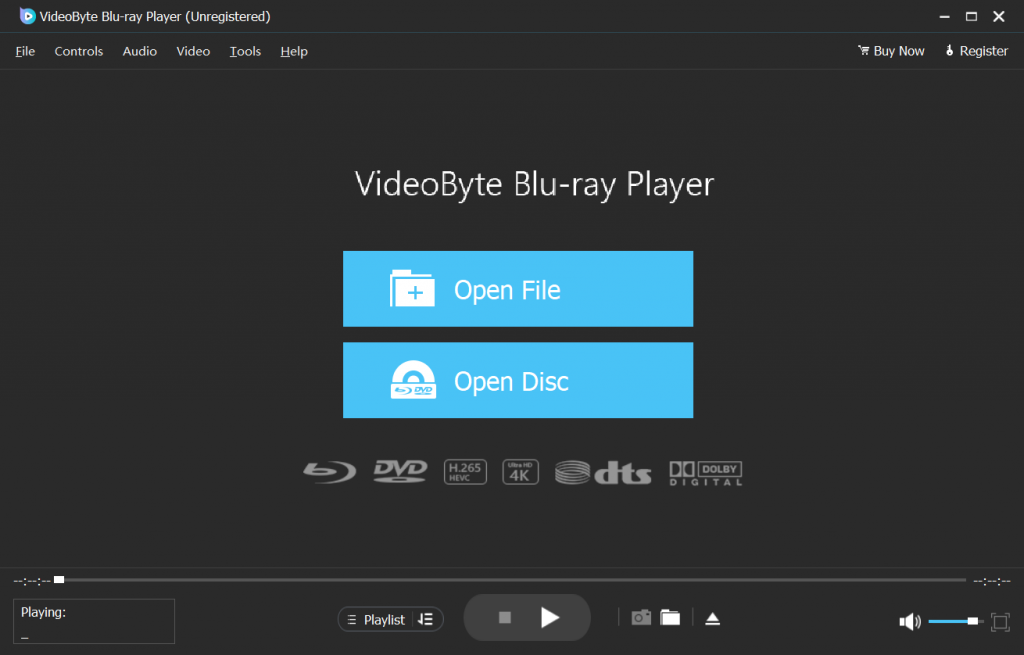
After installing and registering, connect the optical drive to your computer before you start VideoByte Blu-ray Player. Next, insert your DVD disc into the drive of your Windows 10/11 computer. And then you can load your disc by pressing the button Open Disc.
Step 2. Play DVD on Windows 10/11
You need to wait for a few seconds, and then the movies will be loaded. You can see the navigation menu on the left of the screen. Now click the Play Movie button on the menu, and then you can enjoy DVD on Windows 10/11 with original definition and smooth experience.
The former sections mainly focus on how to play DVD on Windows 10/11 by selecting a reliable DVD player software. Nevertheless, there is also a one-stop way to enable a more convenient DVD streaming experience – that is by ripping DVD to digital files utilizing VideoByte BD-DVD Ripper!
Sparkling VideoByte BD-DVD Ripper Features
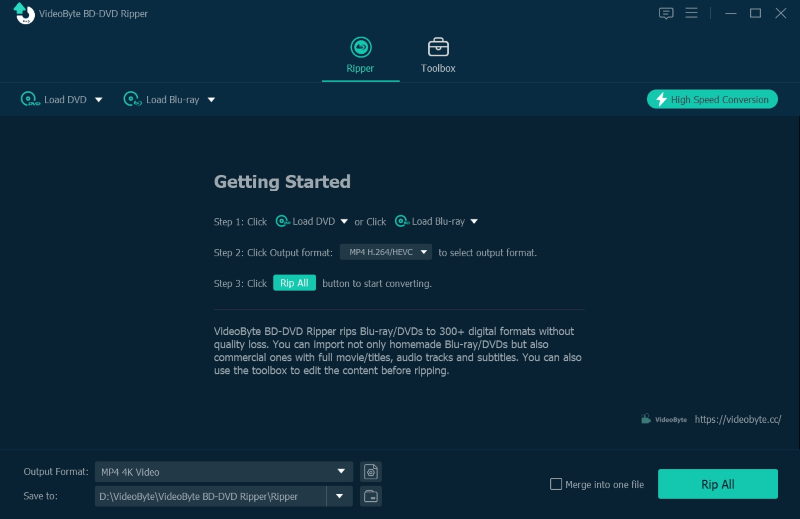
Please also walk through the procedures below to manipulate VideoByte BD-DVD Ripper to rip DVD to digital for playing DVD on Windows 10/11 later on conveniently:
Step 1. Download VideoByte BD-DVD Ripper and insert your DVD disc to the drive connected to Windows 10/11.
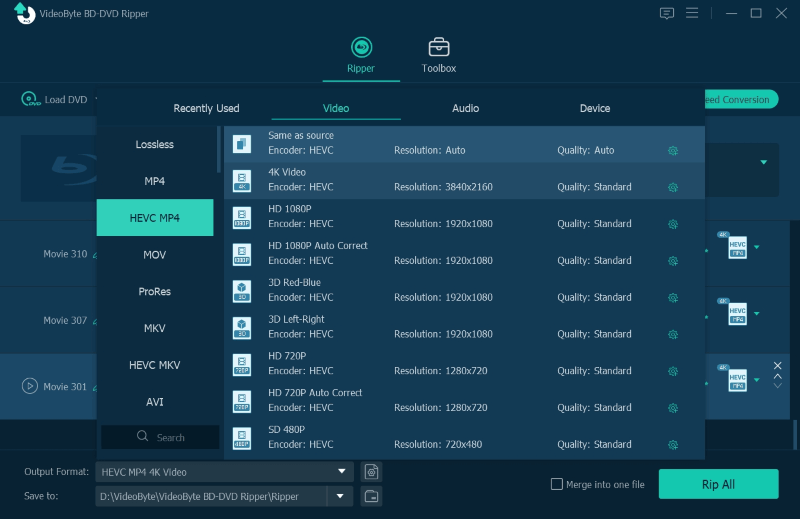
Step 2. Choose Load DVD and select the DVD you’ve inserted from the main feed of the program. Then, click Rip All to and choose the output format like MP4, MKV, AVI, etc. that can meet your needs.
Step 3. After you finish setting, click Rip All and VideoByte BD-DVD Ripper will rip your DVD for you. Once getting the ripped videos, directly play DVD on Windows 10/11 with any installed media player without worrying about incompatibility!
| Price | Blu-ray Support | Best for | |
|---|---|---|---|
| VLC Media Player | Free | Basic (Requires manual setup for advanced codes) | Budget users watching unencrypted discs |
| VideoByte Blu-ray Player | Free Trial / Paid License | Excellent (Built-in automated decryption) | Premium viewing of commercial DVDs and Blu-rays |
| VideoByte BD-DVD Ripper | Free Trial / Paid License | Excellent (Built-in ripping engine) | Long-term digitization and multi-device watching |
Q1: Can Windows 10 or 11 play DVDs natively?
A: No. Microsoft removed native DVD playback and the MPEG-2 decoder from both Windows 10 and Windows 11. If you insert a physical DVD, the default Windows Media Player will not play it. You must install a third-party media player or a dedicated decoder to restore playback functionality.
Q2: Is there an official free DVD player tool provided by Microsoft?
A: Microsoft offers "Windows DVD Player" in the Microsoft Store, but it is not free and costs $14.99. Furthermore, the app has been criticized and abandoned by users due to a lack of updates, frequent crashes, and poor compatibility with encrypted discs. We highly recommend choosing more reliable third-party alternatives instead.
Q3: Why does my DVD play video smoothly but have no sound on Windows?
A: This issue typically arises due to missing premium audio decoders or incorrect audio channel settings. Commercial DVDs always use multi-channel cinema sound formats like Dolby Digital or DTS. If your current playback software lacks native support for these specific codecs, it will fail to decode the audio stream, leaving you with video but no sound. Switching to a professional option like VideoByte easily resolves this compatibility issue.
Q4: How can I safely bypass DVD region codes on a Windows PC?
A: Most physical optical drives only allow you to change the hardware region code up to 5 times before locking permanently. To bypass this restriction without risking your hardware, you should use software equipped with an internal decryption engine, such as VideoByte. It reads the raw disc data directly and bypasses region blocks automatically.
Q5: Does VLC Media Player support encrypted commercial Blu-ray playback?
A: Actually, VLC does not support commercially encrypted Blu-ray discs. Bypassing commercial copy protections in VLC requires a highly tedious setup process that involves installing external database files and dynamic keys. If you prefer a native, direct, and hassle-free Blu-ray experience, a professional player is a much more efficient alternative.
Q6: What are the main benefits of ripping a DVD instead of playing it directly?
A: Ripping digitizes your physical optical media into MP4 or MKV. This protects your discs from physical wear, scratches, and rot over time. Additionally, playing a digital file saves laptop battery life by shutting down the power-hungry external optical drive, and it allows you to easily sync your movie collection to mobile devices like iPads or smartphones for flexible offline traveling.
For the above four tools for playing DVDs on Windows 10/11, each one has its strengths. In comparison to the official Windows players, VideoByte Blu-ray Player supports playing all types of DVD discs and Blu-ray discs in a convenient and flexible manner. Isn’t that appealing? It will give you a wonderful viewing experience to play DVD on computer. Now, select your preferred method to play DVD on Windows 10/11 to start your wonderful DVD movie streaming journey! Enjoy!
Hot Articles
by in 7 February, 2025
by in 7 February, 2025
by in 7 February, 2025



 English
  Korean
  Dutch
Dutch  Chinese
  Italian
  Spanish