





Enjoy Cinematic Blu-ray Movie Playback
With strict encryption requirements and a lack of native Blu-ray playback support on Windows, you will probably find that it’s challenging to play Blu-ray discs on your PC. But there are other ways to avoid it: you can choose third-party tools to obtain a cinema-level audio-visual experience. In this guide, you’ll get 3 tools to play Blu-ray on PC, and learn about their usage and pros & cons, allowing you to have the best Blu-ray video quality with the least hassle.
Want to enjoy a cinematic Blu-ray playback on your Windows computer, but find that the system has no response after inserting the disc? Note that Blu-ray playback on PC is different from DVDs. There is no built-in Blu-ray player on Windows 11/10. Therefore, if you want to play Blu-ray on PC, you will need:
| Hardware Requirements | A Blu-ray disc drive | Internal Blu-ray drive (desktop PCs) |
|---|---|---|
| External USB Blu-ray drive (laptops & compact PCs) | ||
| A Compatible Monitor or TV (Optional) | HDMI connection recommended | |
| HDCP-compliant display for 1080p and 4K Blu-ray playback | ||
| Software Requirements | A Blu-ray player software | |
Unlike DVDs, Blu-ray discs are protected by AACS and BD+ encryption. That’s why Windows Media Player and Movies & TV cannot play Blu-rays. To decode and play Blu-ray discs smoothly, the most direct way is to use a powerful Blu-ray player software.
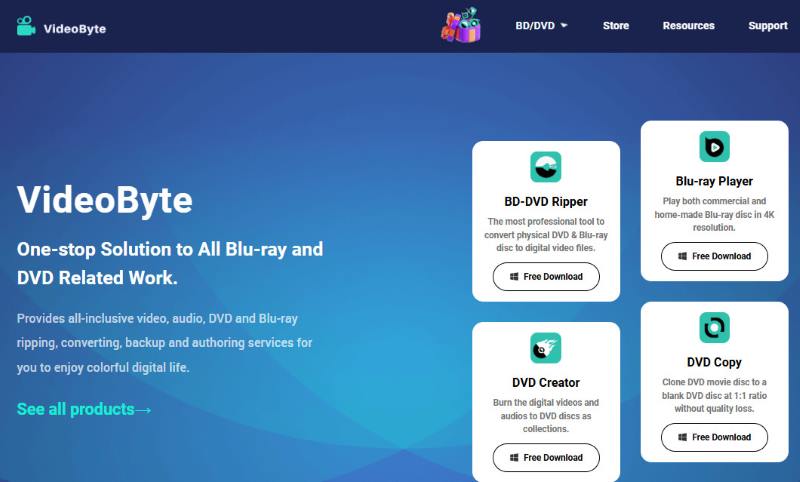
If you place a very high value on ease of use, stability, and video quality, VideoByte Blu-ray Player is a very rewarding choice. This professional Blu-ray player software offers huge compatibility and will fluently play modern Blu-ray disc/folder/ISO/BDMV files and other regular videos. It bypasses various region codes, including Region A, B, and C, letting you watch Blu-ray movies in different countries. Plus, you can receive the original Blu-ray image quality and perfect sound effect, due to the player supporting cinematic audio decoding systems. The clear interface and intuitive menu design enable you to fully control your disc contents.
 Features:
• Play Blu-ray disc files without region code A/B/C.
• Compatible with encoding methods, including H.264 and H.265.
• Enable playing regular video formats like MP4, MKV, AVI, etc.
• Support the highest image quality up to 1080P HD/4K Ultra HD.
• Supports cinematic audio decoding systems (DTS/Dolby Digital).
• Offer GPU acceleration to ensure smooth playback.
• Clean, intuitive interface with zero setup.
| Advantage | You Can |
|---|---|
| Home cinema playback experience on Windows/MacOS. | Enjoy smooth, high-definition Blu-ray movies anytime, anywhere. |
| Records all watching history. | Easy to collect, find and rewatch your Blu-ray files in playlists. |
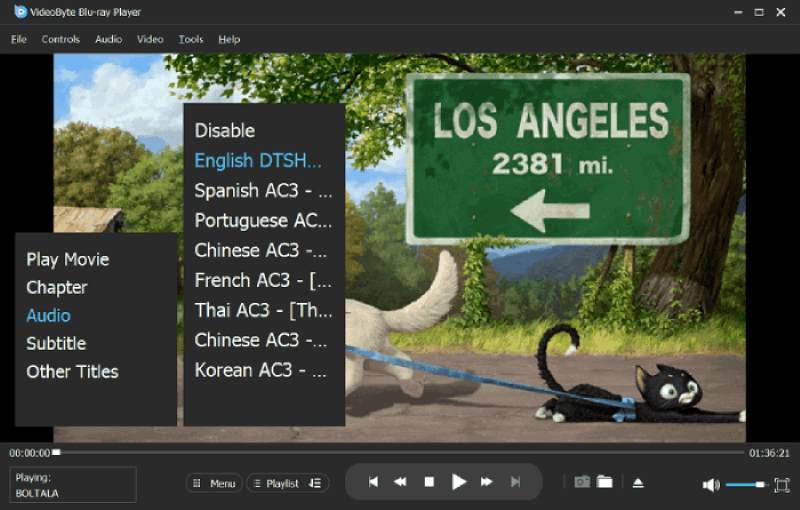
| Keep all metadata of the Blu-ray disc. | Play the complete video with original scenes, chapters, multiple audio tracks and multiple subtitle tracks. |
| Clear navigation menu for easy control. | Access the disc menu and switch to different parts with one click, and have flexible operations to control the playback process. |
How to play Blu-ray on PC with VideoByte Blu-ray Player?
Follow the step-by-step guide below or watch the video tutorial at the top of the window:
Step 1. Download and install the program on your PC. Insert the Blu-ray disc into an internal or external drive.
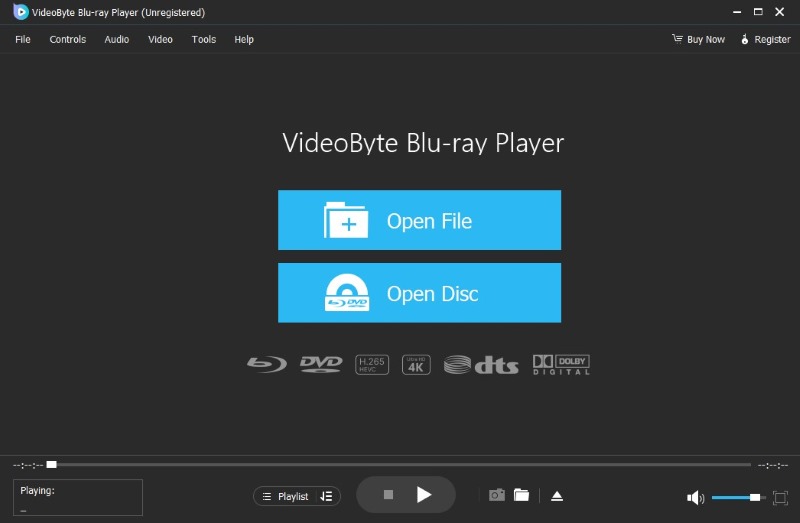
Step 3. Now you can customize subtitles, audio tracks, or video settings and enjoy your Blu-ray movie!
 User Review
The media playback is fluent and has low energy consumption. The simple and clear user interface makes it easy to operate, and the original menu of the Blu-ray disc is completely preserved, making it easy to control various playback settings. Although Blu-ray display is with a watermark in the 30-day free trial, it can be rewarded as one of the best region-free Blu-ray players.
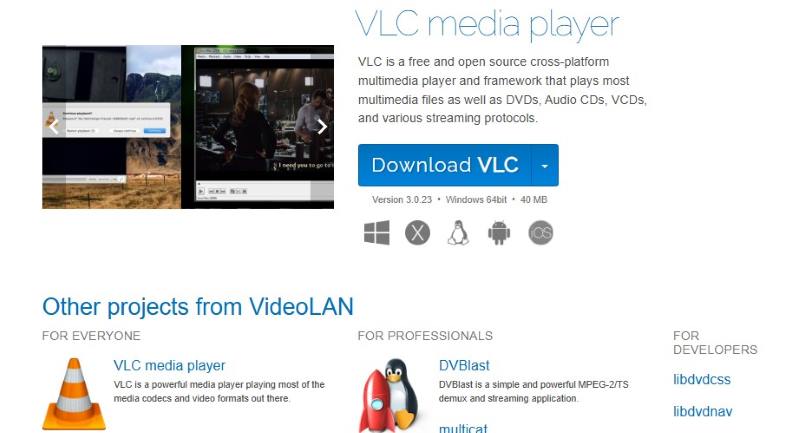
VLC Media Player, a well-known open-source media player, can play most of DVDs, audio CDs, VCDs. It bypasses various audio and video formats, such as MKV, MP4, AVI, MP3, FLAC, etc. Meanwhile, this free player is equipped with additional feature-set, such as subtitle synchronization, basic video filters and more. But by default, it cannot play encrypted Blu-ray discs with licensing restrictions. To do that, you should install libbluray and the AACS dynamic library.
 Pros
Pros
 Cons
Cons
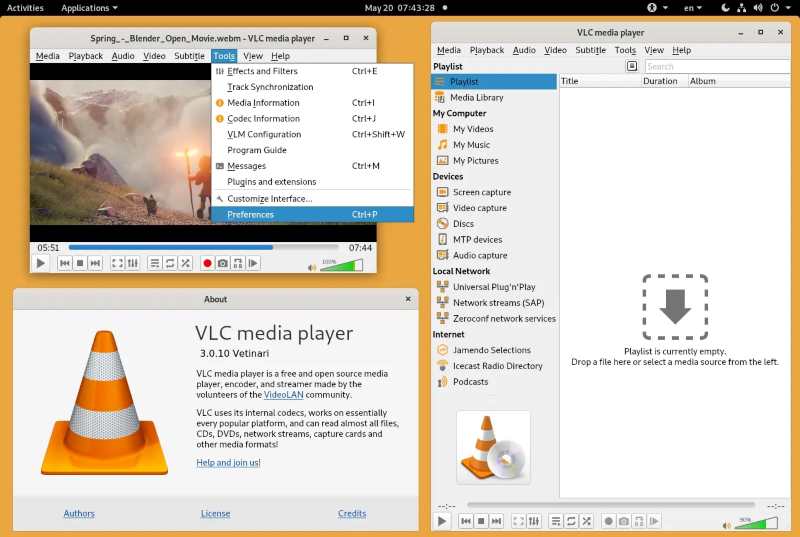
How to enable VLC to play Blu-ray discs on windows 11/10?
Step 1. Download and install the latest version of VLC on your PC.
Step 2. Download the libbluray library from the VLC website.
Step 3. Search for the AACS dynamic library online and download the correct version. Then decompress the file on your computer.
 Note
Note
The method only works for some Blu-ray discs. Newer discs may still fail due to updated AACS protection.
User Review
To make it work, you must manually install AACS dynamic libraries and Blu-ray key database files, which is not user-friendly for beginners. And there are frequent playback errors and crashes, or some new Blu-ray discs will fail to access. This makes VLC unsuitable for users who just want to watch a movie without technical hassle.
You may wonder: If a Blu-ray disc can be played directly, why convert it to digital formats? It seems like a way to go the extra mile. However, there are several reasons why you need to rip instead of playing Blu-ray discs.
• Portability and Convenience
Ripping allows you to convert Blu-ray movies into digital files, making Blu-ray files a more portable and practical solution for users who travel frequently or prefer watching movies on various devices.
• Preservation and Management
Blu-ray discs have the risk of being scratched or lost. Ripping provides a way to preserve and back up your collection. It’s easy to archive and manage large Blu-ray collections on your computer or cloud.
• Better Customization
When ripping Blu-rays, you can adjust the video format, image quality, audio tracks, subtitle options and more. You can create your preferred playback experience that suits your specific needs.
By now, I'm sure that you want to look for a reliable Blu-ray ripping tool. We recommend a top-rated application: VideoByte BD-DVD Ripper. You can rip all types of DVD and Blu-ray discs without protection hassle. It supports transferring your disc to 300+ mainstream formats while keeping original quality and all subtitles or audio tracks.
(This tool is only for personal use.)
Features:
• Rip all kinds of DVD/Blu-ray discs/VIDEO TS folders/ISO files.
• Bypass protections like APS, CSS, ARccOS, CPRM, AACS, BD+, Cinavia, and region codes.
• Convert Blu-ray discs to various formats, such as MP3, AAC, M4A, MP4, etc.
• Supports 2D to 3D conversion.
• Output lossless video quality up to 4K.
• Ripping Blu-rays with all subtitles and audio tracks.
How to rip a Blu-ray disc and play Blu-ray on PC?
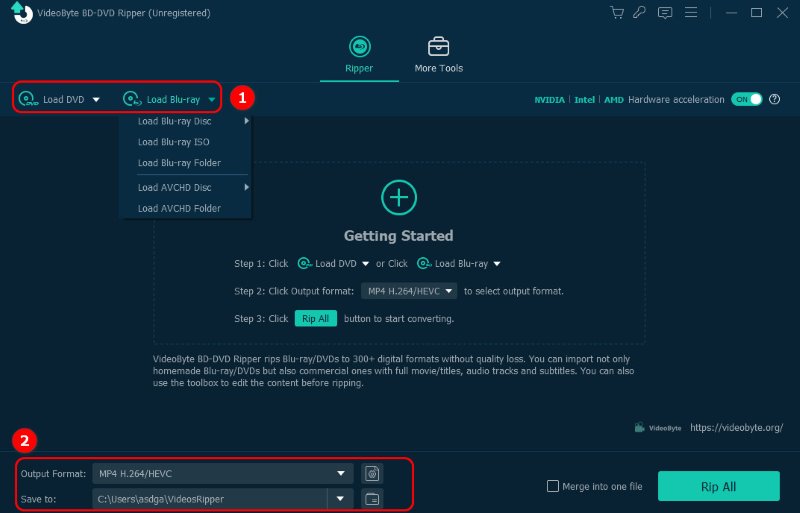
Step 1. Download and run VideoByte BD-DVD Ripper. Insert your Blu-ray disc into the drive first.
Step 2. Click Load DVD or Load Blu-ray to choose the destination folder for your files.
Step 3. Choose the output format and click Rip All to begin ripping Blu-ray discs to PC.
Step 4. After that, you can play the converted Blu-ray files on your PC or other video players.
 User Review
Directly playing Blu-ray on my PC always connects to the drive. After converting my discs to MKV files, I can instantly watch and organize them on many devices. It's definitely worth it in terms of long-term convenience and flexibility.
Q1: Can I play Blu-rays directly on Windows 11?
A: No. Windows 11 does not support Blu-ray playback natively. It can’t decode advanced encryption of Blu-ray discs by default. To achieve the task, you need to have an internal or a external Blu-ray drive and a third-party Blu-ray player software.
Q2: Why can't I play Blu-ray on my PC?
A: There are several common issues:
1. You don’t install a Blu-ray player or equip with a Blu-ray drive.
2. Most Blu-rays are protected by AACS/BD+ and required licensed decoding.
3. Some setups block playback if the display or HDMI connection isn't HDCP compliant.
4. You can update the newest version of the Blu-ray player to remove the newest region code.
Q3: How can I play 4k UHD Blu-rays on my PC?
A: You only need a Blu-ray drive and a professional Blu-ray player, such as VideoByte Blu-ray Player. It supports smooth 4K Ultra HD image quality with zero quality loss of data.
If you never mind complex operations or don’t chase advanced playback features, VLC may be preferred. For those looking for stable playback with a high-quality image and audio experience, VideoByte Blu-ray Player is the best choice. If attaching great importance to long-term convenience, you can also convert Blu-ray to mainstream formats. By doing so, you can break through hardware limitations and smoothly play Blu-ray on your PC at any time.
Hot Articles
by in 7 February, 2025
by in 7 February, 2025
by in 17 December, 2025



 English
  Korean
  Dutch
Dutch  Chinese
  Italian
  Spanish