





Burn Videos to DVDs and Blu-ray Discs Effortlessly
Forward this article:



Is Wondershare DVD Creator still worth your money in 2026? Short answer: It depends. It's a good choice if you want a feature-rich, Blu-ray-capable DVD burner and don't mind a steep learning curve. But if you're a casual user who just wants to digitize some home videos, you'll find it too complex and expensive.
I discovered this the hard way. Last month, I needed to transfer over 20 home videos from an old camcorder to DVD for a family party. After two frustrating nights, I realized there had to be a better, more intuitive way to get the job done. This is my honest, hands-on review after a few weeks of testing.
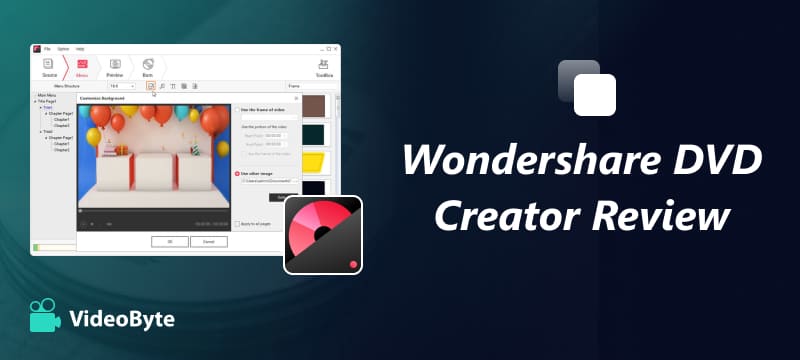
To provide accurate recommendations, our team evaluated each DVD creator software against 5 aspects:
All tests were conducted on a clean Windows 11 PC (Intel i7-12700, 16GB RAM) using Verbatim DVD-R discs. Each test session was run 3 times, and the average results are recorded below to ensure accuracy.
As one of the best DVD Creator software, Wondershare DVD Creator is a desktop application listed under Wondershare's Creativity section. It offers a standalone environment for users to manage their video content by burning it onto physical DVDs or saving it as digital backups.
Since its release, the software has received mixed reviews. Although it comes equipped with a wide range of powerful add-on toolkits, many users find the interface overwhelming and difficult to navigate. Let’s take a closer look at the specific features it offers.
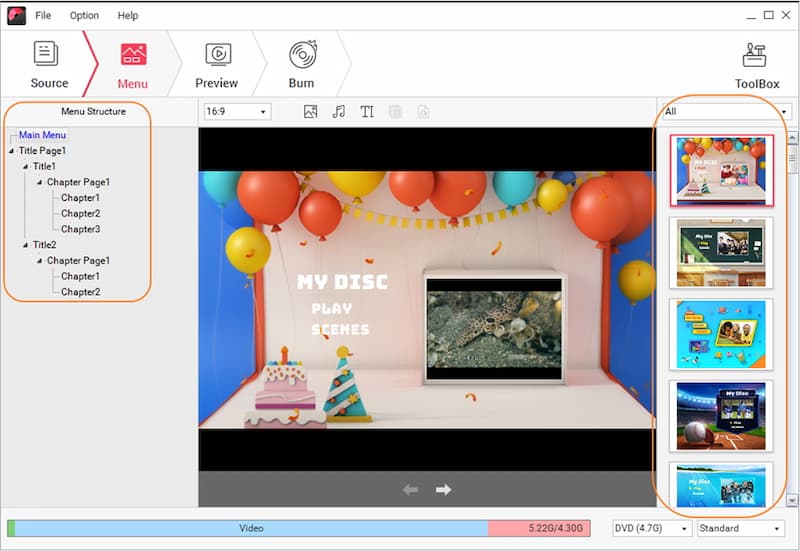
Wondershare DVD Creator comes with plenty of bells and whistles, making it much more than a simple DVD creation program. However, this multi-functional approach comes with a price - it compromises the core user-friendliness.
Before using Wondershare DVD Creator, it is vital to know whether your media files are compatible with its format. If you are confused about disc types, you can read our guide to the DVD vs. digital formats comparison to make an informed decision.
| Mode | Supported Input Formats | Supported Output Formats |
|---|---|---|
| Standard DVD Burning | Videos: MP4, FLV, AVI, MOV, 3GP, WMV, MKV, VOB, MTS, M2TS, WEBM, etc. Images: JPG, JPEG, PNG, BMP, GIF, TIFF, HEIC. |
Discs: DVD 5/9 (DVD-R, DVD+R, DVD-RW, DVD+RW, DVD+R DL). Digital: DVD Folder, ISO Image. |
| Blu-ray Burning (Win Only) | Same as above. | Discs: BD 25/50/100 (BD-R, BR+R, BD-RW, BD+RW). Digital: BDMV Folder. |
| Data Disc Burning | Videos: Massive list including MP4, AVI, MOV, 4K formats. Audio: AIF, FLAC, M4A, MP3, OGG, WAV, WMA. Images: JPG, PNG, GIF, BMP. |
Same physical disc types as standard burning. |
Wondershare includes a mini video editor directly inside the burning workflow:
Burning performance is where the rubber meets the road. We benchmarked Wondershare against several file types. The engine is stable, but it is not the fastest on the block, and custom menu rendering occasionally causes the software to freeze.
| File Size | Format | Resolution | Wondershare DVD Creator | VideoByte DVD Creator |
|---|---|---|---|---|
| 50 MB | MP4 | 1080p | 3min 12s | 2min 48s |
| 350 MB | MP4 | 1080p | 31min 40s | 27min 15s |
| 1.2 GB | MOV | 4K | 2hr 05min | 1hr 48min |
 Note
Note
The tests were conducted using Verbatim DVD-R discs. The results were averaged across three independent tests. Conducted by the VideoByte hardware testing team in June 2026.
During our tests, Wondershare occasionally shows a "Conversion Failed" error without any specific error code. What’s more, if you spend a lot of time customizing your DVD menu layout, you might run into positioning issues, like text alignment changing after burning. To avoid these hassles, it's best to stick with the default templates.
When we know the features that Wondershare DVD Creator offers, we also outline the software's pros and cons from a user perspective, so you can decide whether it is the tool you need.
 Pros
Pros
 Cons
Cons
Not all DVD creators are created equal. Before spending your hard-earned cash, consider these dimensions:
1. Disc Compatibility — Do you need standard DVDs or high-capacity Blu-rays? (Wondershare supports Blu-ray, but only on Windows).
2. Interface Clarity — Are you looking for a clean, 3-step process, or an advanced dashboard?
3. Trial Restrictions — Does the trial let you test the actual output quality without watermarking the video?
4. Value Structure — Avoid recurring yearly software bills unless you run a commercial burning studio.
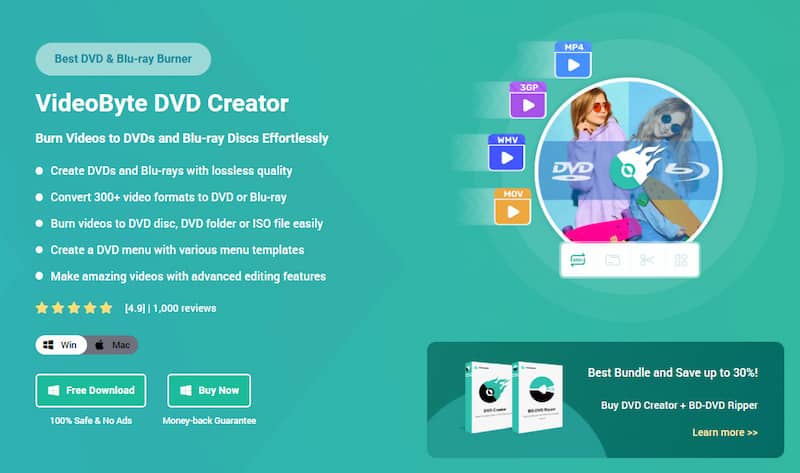
VideoByte DVD Creator is the optimal alternative to Wondershare DVD Creator. By comparison, it’s a more intuitive and worthy DVD creator. This is a dedicated DVD creation program that enables you to burn your local videos to DVD with a fully custom menu. What’s better is that it doesn’t set any limitations on its free trial, and you can create 3 DVDs for free in 10 days. If you just want to make one or two DVDs, VideoByte is a better, free choice for you.
Explore More Excellent Features
| Wondershare DVD Creator | VideoByte DVD Creator | |
|---|---|---|
| Pricing Plan | $39.95/yr (Win) $49.95/yr (Mac) |
$24.95/month $49.95/yr (Win & Mac) |
| Blu-ray Support | √(Windows Only) | √(Win & Mac) |
| Free Trial Policy | Enforces heavy watermarks across all outputs | Burns 3 full DVDs completely FREE, NO watermark |
| 100+ Menu Templates | √ | √ |
| Ease of Use | ⭐⭐ (Complex layout, crowded tools) | ⭐⭐⭐⭐⭐ (Foolproof 3-step workflow) |
| Best for | Advanced Power Users | Beginners & Casual Archivists |
VideoByte simplifies your entire workflow. If you want a deeper technical breakdown, check out our comprehensive guide to burning a DVD on Windows/Mac.
Step 1. Import Your Media Files. Launch VideoByte DVD Creator and click the central "Add Media File(s)" button to load your source videos.
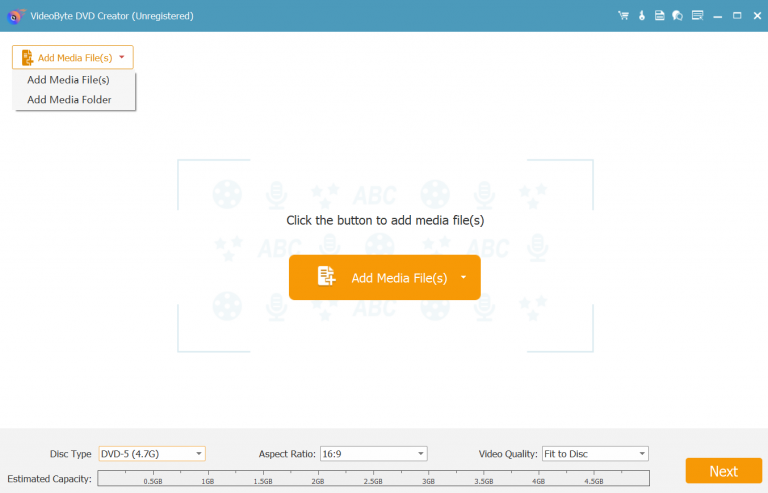
Step 2. Customize Your DVD Menu. Pick from dozens of elegant, free menu templates. You can easily adjust background music, change button positions, or title cards with zero rendering issues.
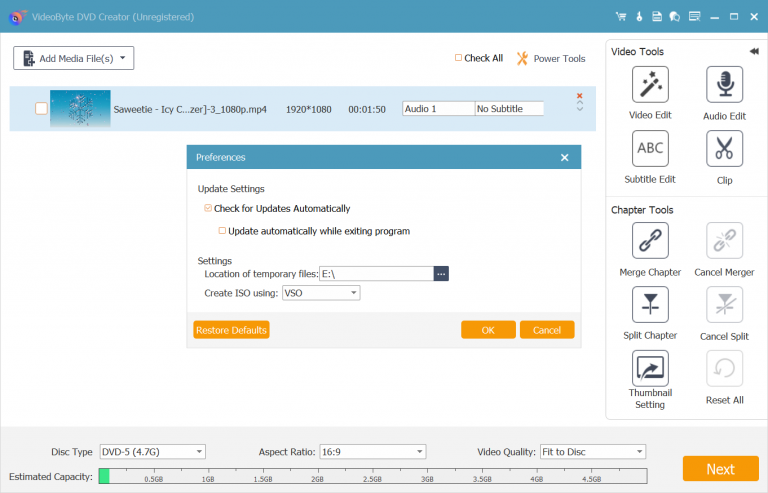
Step 3. Set Parameters and Burn. Select your output location, aspect ratio, and video bitrate quality. Pop a blank disc into your optical drive, click "Burn", and let the high-speed engine finish the rest.
Q1: Is Wondershare DVD Creator free?
A: No. Wondershare DVD Creator is a paid desktop software starting at $39.95/year. Its free trial version lets you use basic features but adds a giant watermark to all burned videos.
Q2: Is Wondershare DVD Creator safe?
A: Yes, it is completely secure and free of malware, provided you download the installation packages directly from its official corporate website. Avoid cracked versions online as they often bundle malicious code.
Q3: Does Wondershare DVD Creator support Blu-ray on Mac?
A: No. The capability to author Blu-ray discs and BDMV folders is strictly locked to the Windows version of Wondershare. Mac users can only burn standard DVDs.
Q4: What are the minimum system requirements for running it?
A: It supports Windows 11/10/8/7 and macOS 10.10 or higher. You will also need an internal or external optical drive capable of writing data to blank discs.
Q5: Is there a money-back guarantee for Wondershare products?
A: Wondershare offers a standard 30-day refund policy. However, refunds are only approved under specific technical failure clauses, not simply because you changed your mind.
Q6: Can the DVD I burned play on any regular TV DVD player?
A: Yes. Both VideoByte and Wondershare burn discs using the standard DVD-Video structure, ensuring they can play on both old and modern home entertainment devices.
After reading the Wondershare DVD Creator review here, you may already learn your way around this DVD maker. If you just want to create a DVD with a few videos, this software will be hard to get started with because of too many complicated features. Moreover, it’s expensive, while the free trial is also tied to a bunch of limitations.
Instead, VideoByte DVD Creator is a foolproof program for easily making DVDs from videos of all types. Better yet, it lets you create 3 DVDs, free of charge, with all features. Also, you can make your masterpiece with a refined DVD menu. Don’t just read. Try it out, and you’ll see.
Hot Articles

 English
  Korean
  Dutch
Dutch  Chinese
  Italian
  Spanish