





The Only Ripper to Support Both DVD & Blu-ray
Forward this article:



We tested over 50 discs—including Region 1-6 encryptions and physically damaged DVDs on Windows and macOS. VideoByte BD-DVD Ripper maintained a 99% success rate with 1:1 lossless quality. It delivered a 6X faster ripping speed, digitizing a full 120-minute DVD in under 30 minutes, making it our top-rated choice for both quality and reliability.
“My computer is not equipped with a built-in DVD hard drive at all… I wanna know if I can convert DVD to MP4 so that I can directly play the videos without an external drive. Anybody help?”
You’re not alone if you run into such a problem. Lots of people have DVD movies, videos, personal collections, or any other video files that record moments or favourite movies. Instead of finding a drive to play them, converting these DVD files to MP4 enables you to watch them anywhere with a DVD media player on a computer.
To make the DVD to MP4 conversion easy, quick, or even free, today's post has compiled the 10 best DVD to MP4 converters for Windows and Mac. Read on to find one that suits you best!
If you want to effortlessly play DVD, then VideoByte BD-DVD Ripper can be your best option to convert DVD to digital on Windows/Mac. Many DVDs are encrypted with region codes and copy protection like DRM, APS, CSS, and ARccOS. To successfully convert DVDs to MP4, the right DVD converter that can bypass these restrictions is essential.
Here, VideoByte BD-DVD Ripper is strongly recommended, for its powerful ability to decrypt all types of DVD protections to convert encrypted DVD videos to MP4 and other 300+ formats without hassle. Better still, you will get the output file that keeps the original image and audio quality, which gives you a cinema-like experience at home on the computer.
For your own DVD files, VideoByte BD-DVD Ripper can also rip them to MP4 at 6X faster speed. Its flexible parameter setting options and built-in editor are another huge plus, enabling you to adjust and edit videos before ripping them from DVDs. With this best DVD converter, you can ensure the best output effects to convert DVD to MP4 for the best playback experience afterward.
• Convert homemade and protected DVDs to MP4 (all protection methods handled).
• Maintain the lossless qualityof your DVD videos after conversion.
• Convert your DVDto MP4 and other 300+ formats.
• Fast DVD to MP4 conversion.
• Preserve all subtitles andclear audio.
• Edit your video files with its flexible parameter settings and editing features.
| Technical Support of VideoByte BD-DVD Ripper | |
|---|---|
| Encryption Support | APS, CSS, ARccOS, CPRM, AACS, BD+, Cinavia, POM Mark, UOPs, Region Codes, etc. |
| Disc Compatibility | DVD/Blu-ray discs, VIDEO TS folders, ISO files |
| Output Quality | SD 480p/576p, 640p, HD 720p/1080p, 4K, 1:1 Lossless |
| Output Format | 14 audio types, 20 HD video types and 26 SD video types |
| Output Devices | Apple, Samsung, Huawei, Xiaomi, Sony, Game, TVs (Check the official website for specific model references.) |
| OS Support | Windows 11/10/8.1/8/7 (32-bit/64-bit), macOS 10.12 or above |
| CPU | Win: 1GHz Intel/AMD CPU or above Mac: 1GHz or above Intel and Apple Silicon processor |
| RAM | 2GB RAM or above |
(Note: The program only for non- commercial, personal use and legal backup of copyrighted DVDs.)
Converting DVDs to MP4 is much easier than you thought. With the detailed tutorial below, you can easily fix how to convert DVD to MP4 on Windows/Mac with VideoByte BD-DVD Ripper.
A step-by-step guide is also provided here to show you how to convert DVD to MP4 on Mac/Windows in 3 simple steps. Download VideoByte BD-DVD Ripper and give it a shot.
STEP 1. Insert and Load Your DVD File
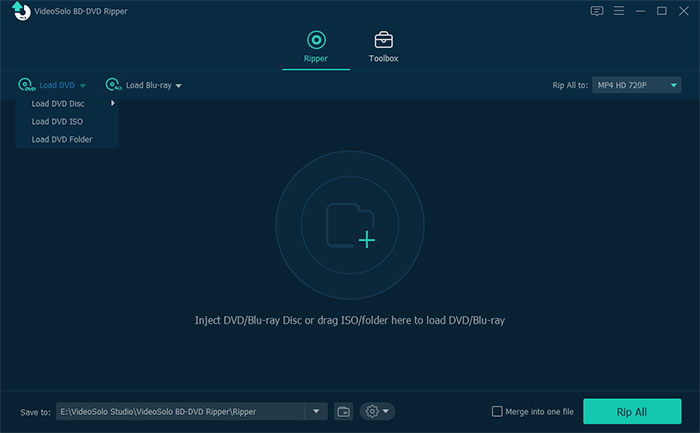
Once you install the VideoByte BD-DVD Ripper on your Windows or Mac, launch the program and insert your DVD first. Then, in the software, click Load DVD > Load DVD Disc to immediately import DVD data.
STEP 2. Select DVD Titles and Subtitles to Convert
Click the Full Title List menu to choose the videos you desire to convert to DVD exactly. Or you can go with the default setting, which means all videos will be converted.
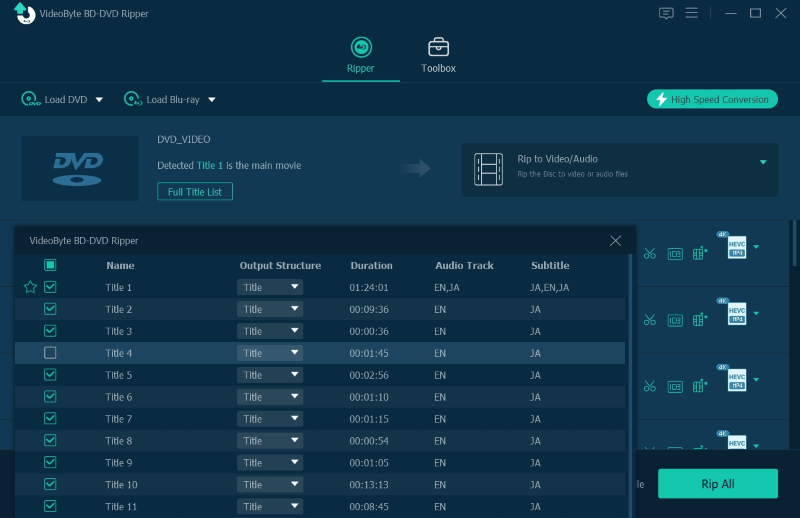
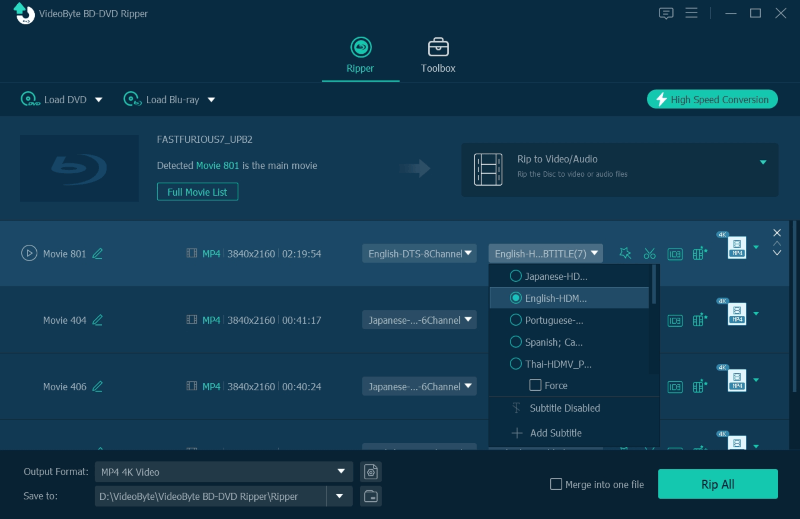
After that, click on the audio tracks as well as subtitles options below the listed media, you can also choose the ones to convert with the DVD videos if you need to.
STEP 3. Select MP4 Format and Convert
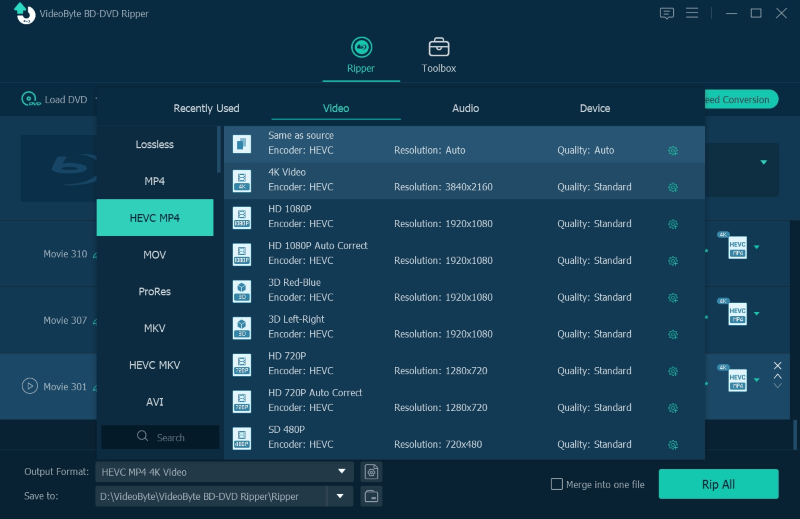
Turn to the upper-right Rip All. From the drop-down menu, select MP4 and your desired resolution to convert DVD to MP4. Finally, simply hit the Rip all icon, and VideoByte BD-DVD Ripper will start the conversion within minutes!
User Review: 4.3/5 from Trustpilot
“I am able to rip Blue Ray and DVD's into hundreds of different formats. I can even back up the original ISO! If a format doesn't work for one device, I can take that file and easily turn it into another without needed to re-rip from the disk.”
VideoByte has just released the VideoByte DVD Ripper, an alternative to the VideoByte BD-DVD Ripper. If you just need a tool to rip DVDs without ripping Blu-ray features, this lightweight DVD converter is a reliable choice. The only difference between these two rippers is that VideoByte DVD Ripper is designed specifically for DVD ripping while VideoByte BD-DVD Ripper supports both Blu-ray and DVD ripping.
If you get an unprotected DVD video, then take a look at HandBrake. It is a free DVD to MP4 converter best for converting personal DVDs to various formats such as MP4 with easy-to-grasp steps. This DVD converter also provides various parameter settings, enabling you to convert DVD files to MP4 for free in the quality you like.
Its advantage of free DVD to MP4 conversion naturally brings it some limitations. HandBrake can’t convert copy-protected DVD videos. For DVD rippers that can rip protected DVD files, check this post: Free & Paid DVD Decrypter Software for Windows/Mac. Nevertheless, it is still a good choice to convert protection-free DVD videos to MP4. For example, you can convert your own DVD collection, homemade movies, etc to MP4.
STEP 1. Install HandBrake
HandBrake works on Macs running 10.13 and later and computers running Windows 10 and later. If your device isn’t supported, try VideoByte BD-DVD Ripper. Make sure that you download and install HandBrake before the next step.
STEP 2. Open DVD on HandBrake
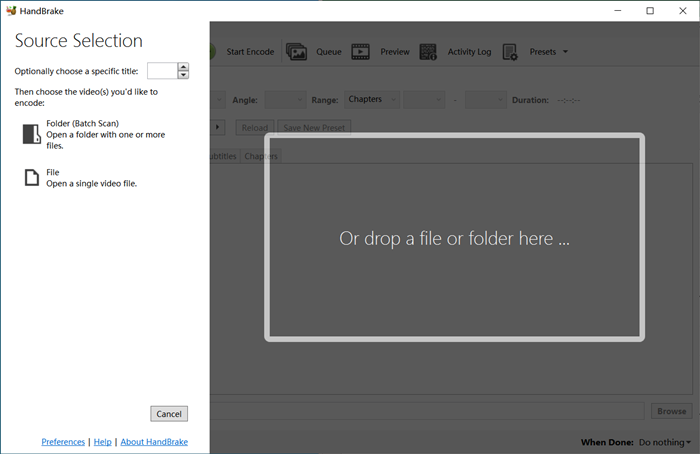
Launch the program and insert the DVD. On the left tab, select File to load the DVD you want to convert. If you get a whole DVD file to convert, drop the file onto the main screen.
STEP 3. Convert DVD to MP4
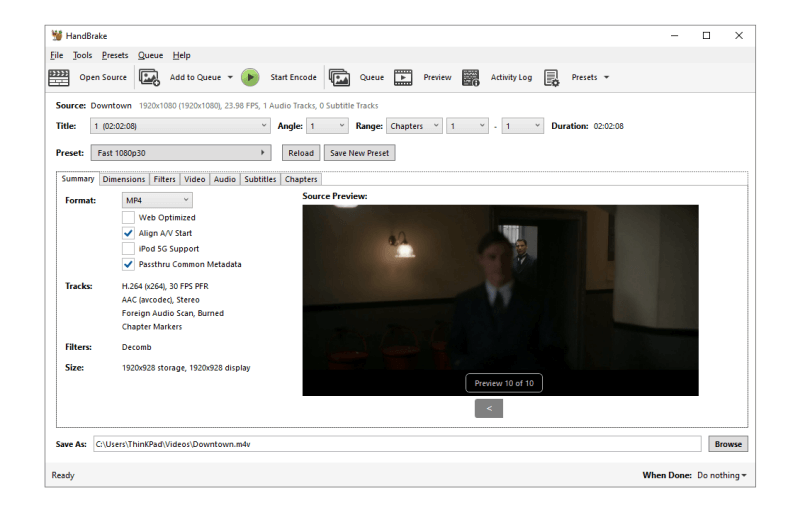
HandBrake supports limited output formats including MP4, MKV, and WebM. Select the output format to MP4 and change the storing path. Now, you can click the Start Encode button right in the middle and just wait till it’s done. Do note that HandBrake is not a fast DVD converter.
 Pros
Pros
 Cons
Cons
User Review: 4/5 from Trustpilot
“Has a lot of settings that might be a bit confusing…It does a great job of conversion and compression.”
The unavoidable problem with free DVD ripper, like Handbrake, is the poor stability. Much feedback shows that these tools will result in blurry screens or out-of-sync audio and video when converting Disney or Sony DVDs due to the lack of decryption drivers. But VideoByte BD-DVD Ripper is built with robust and developing decoding and decrypting technology, dealing with the latest protections without third-party plugins.
If you have a DVD file to rip, be it protected or not, and you want to watch it on the media player, then VLC can be your best option. Like Handbrake, VLC is also a free and open-source program workable to convert DVDs to MP4 for free. It can convert unprotected and homemade DVD files to MP4 and other mainstream formats, though it only breaks common types of copy protection. Best of all, VLC can rip as well as play DVDs as it is also a well-known media player.
VLC is compatible with Windows, Mac, and Linux. You can install it and use it to convert DVD to MP4 on Windows 10, Mac, etc. Overall, these features make VLC the best free DVD to MP4 converter for your personal DVD files.
 Note
Note
If VLC takes forever or fails to extract DVD to MP4, especially encrypted ones, try the professional and powerful VideoByte BD-DVD Ripper, a ripper that can always convert protected and your own DVD files to MP4, making them playable on a computer directly.
Here we take Windows as an example to show how you how to rip DVD to MP4 on a computer.
STEP 1. Install VLC Media Player
Download VLC from its website. It can run on Windows, macOS, Linux and Android. Then, follow the on-screen instructions to finish the setup.
STEP 2. Load DVD in VLC
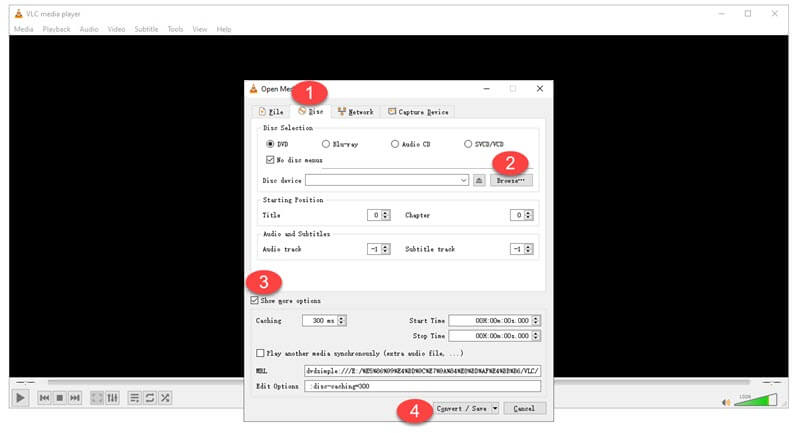
Run the VLC media player and load the DVD you want to rip. Now, select Media – Convert / Save from the menu on VLC. Next, go to the Disc section and choose DVD. You should be able to choose your DVD when the computer reads the DVD.
STEP 3. Convert DVD to MP4 Using VLC for Free
Adjust the starting position by titles and chapters. Or, if you just want to rip part of the video on DVD, you can check out Show more options and set up the start time & stop time. When you’re all set, click the Convert / Save button to start converting DVD to MP4 on your Windows.
Pros
Cons
User Review: 3.7/5 from Trustpilot
“Hardware acceleration on ARM-based devices needs stabilization to enhance performance and battery life. The app interface could be improved, with slicker controls and easier access to advanced options.” - From G2
 Tips
Tips
In our tests, enabling this feature reduced the CPU load by 40% and cut the total conversion time by more than half without affecting the output quality. VideoByte is powered by Intel QSV, NVIDIA NVENC/CUDA and AMD APP, making the process more efficient.
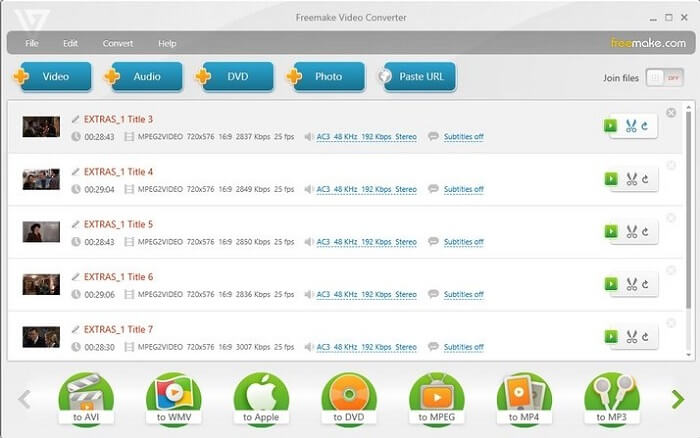
While VLC is a bit complicated, Freemake delivers the easiest way to help you rip MP4 videos from DVDs. Its clear on-screen instructions and simple and clear interface enable every beginner to get started with the process without any confusion. However, Freemake only provides a Windows version. If you are a Mac, you may need to turn to the best DVD Ripper for Mac. Considering its advantages and limitations, Freemake should be the best DVD to MP4 converter for Windows beginners who just want to rip DVDs to MP4 without adjustment.
STEP 1. Import DVD to Freemake
When you have installed Freemake on your Windows, launch the software and then insert the DVD disc into your PC. You should click the +DVD button on the main interface and select loading DVD file.
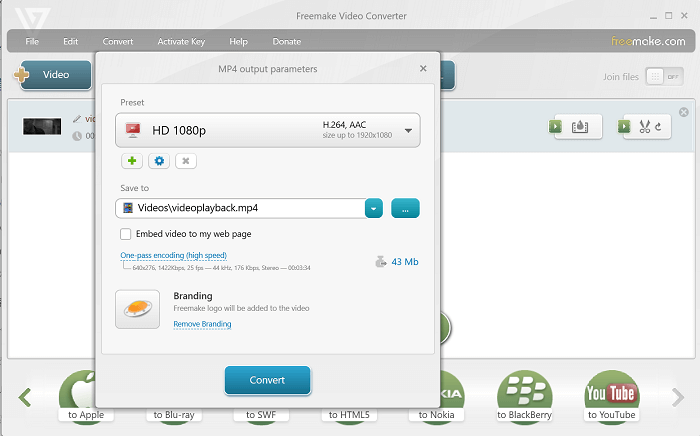
STEP 2. Choose MP4 in the Output Parameters
After loading DVD media in Freemake, customize the parameter settings. Here you can select MP4 and 1080P to convert your DVD to HD MP4 video. In the settings window, select an output folder to preserve the converted MP4 videos as you desire.
STEP 3. Convert DVD to MP4
Finally, when all settings are completed, you are able to tap the Convert icon to process converting DVD to MP4 right away.
 Note
Note
Freemake is slow as it is not equipped with any hardware acceleration tech like VideoByte BD-DVD Ripper. Also, Freemake is not available for Mac users. If you desire a faster way to convert DVD to MP4 on Mac or Windows more efficiently, you’d better turn to a more professional converter like VideoByte BD-DVD Ripper to help.
Pros
Cons
User Review: 3.9/5 from Trustpilot
“Easy to use but bugs a lot for DVD rip. It's probably a great option/app when you don't need to use it a lot, otherwise it's quickly overwhelmed and not efficient.”
Enough with desktop programs? Here comes an online DVD to MP4 converter – Online File Converter. It is recommended as a reliable online tool to convert DVD to MP4 online for free. Compared with desktop software like VideoByte BD-DVD Ripper, the online converter is not stable as it sometimes fails to convert DVD to MP4. Yet it is still a convenient DVD to MP4 converter, especially if you just rip several DVDs to MP4 and don’t want to install any software.
STEP 1. Open Online File Converter in a Browser
Just direct to the official site of ConvertFiles and read your DVD on your computer. Click Browse to choose the DVD.
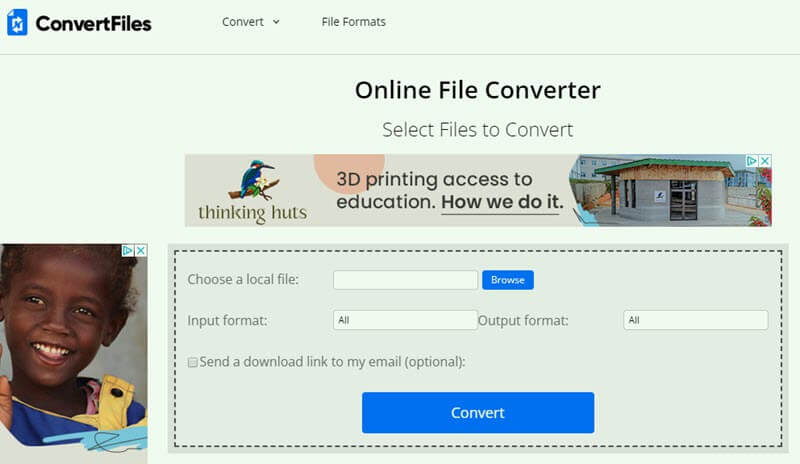
STEP 2. Convert DVD to MP4
Click the blank next to Output format to choose MP4 as the output format. Then, click the Convert button and choose the path to store the MP4 file. Since the site processes data over the cloud, that may take from minutes to hours to process your DVD to MP4 conversion.
Note
that you can let the site send a download link to your email.
Pros
Cons
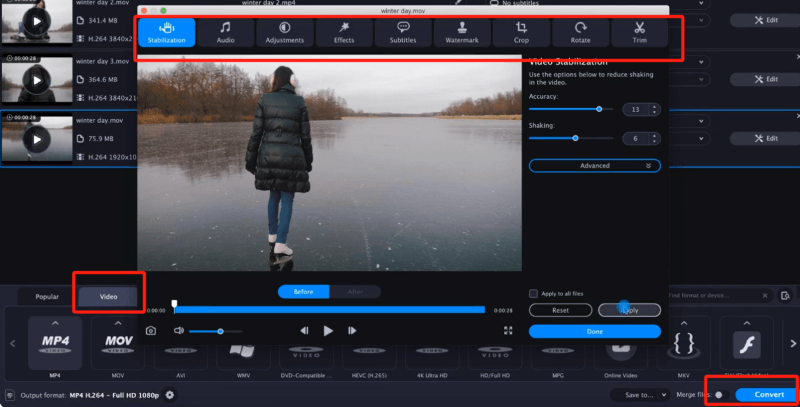
Movavi Video Converter is a fast DVD to MP4 converter with loads of editing features. This fast program not only can convert DVD to MP4 on Mac and PC but also enables you to enhance video quality, add subtitles and effects, and cut unwanted parts, making it ideal for converting your own DVD files. Its SuperSpeed mode can even speed up the conversion at a super fast speed!
While the feature-full converter offers a 7-day trial to convert DVD to MP4 for free, it leaves a watermark on the converted MP4 videos. Also, it can’t rip copyright-protected DVDs. So if you can live with this, this program is ideal for converting multiple homemade DVD discs.
Movavi Video Converter is easy to use. Follow the steps below to convert DVD to MP4 on Mac or Windows.
Step 1. Install Movavi Video Converter
Launch the program. To add your DVD files to the program, click the Add Media button at the left tab. Choose Add DVD > Open DVD. Locate the folder on your DVD and click Select Folder.
Step 2. Convert A DVD File to MP4
On the bottom of the screen, click the Video tab and select MP4 as the target format. Customize the preset that suits your needs. If you want to trim your DVDs, check its editing features on the upper tab.
Tips
During the conversion, we found that H.264 (AVC) deliver good video quality at low bit rates and small file size. While it is a lossy compression format, it supports a range of resolutions and frame rates that compatible with a range of devices and platforms.
Step 3. Start the Conversion
Click the Save to button to choose a folder where your converted files will be stored. Click the Convert button to start the process.
Pros
Cons
User Review: 3.8/5 from Trustpilot
“It stands out for its intuitive interface, fast conversion, and support for a wide range of formats. The cons of Movavi include limitations in the free version, such as…Additionally, it lacks support for more advanced editing features that other software offers.” – From G2
DVDFab DVD Ripper is software that can convert DVDs into digital video files to play or store on various devices at up to 50X faster speed. It supports multiple output formats, such as MP4, AVI, MKV, MOV, FLV, WMV, etc., making DVDs playable on different mobile devices. Additionally, it bypasses common DVD copy protections like CSS, APS, RC, and Sony DADC, etc. With DVDFab, you can easily convert DVD to MP4 format.
While DVDFab DVD Ripper isn’t entirely free, it offers a 30-day trial. During the free trial, you can convert DVDs to MP4 and MKV in standard definition (480p) quality. To access all its features, you need to upgrade your subscription, starting at $59.99/year. But if speed is your priority, DVDFab DVD Ripper is still a good choice.
Since DVDFab’s interface can be a bit complex, please follow the detailed instructions below to solve how to convert a DVD to MP4 on Windows or Mac.
Step 1. Import DVD into DVDFab DVD Ripper
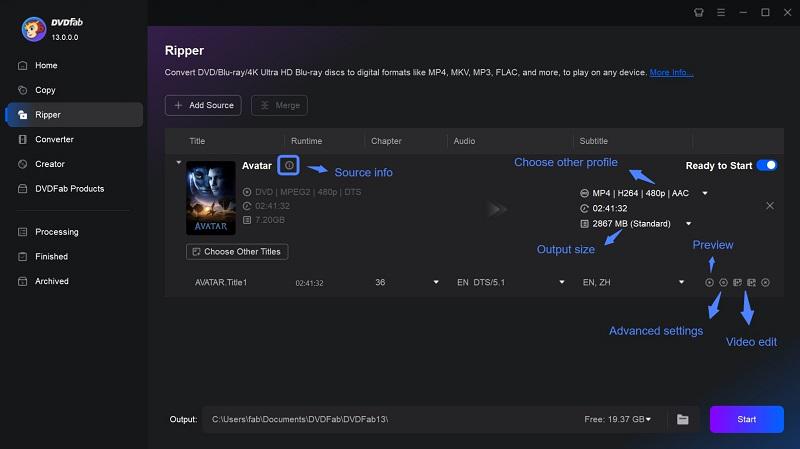
To begin with, install and launch the DVDFab all-in-one program on your Windows or Mac computer, and then go to the Ripper section. Next, insert your DVD into the optical drive so that DVDFab can detect the DVD source after you click on the add button.
Step 2. Select MP4 as the Output Format
Once the DVD is loaded, you can see the detailed information listed. Simply click Choose Other Profile to select MP4 as the output format. Also, you can refine the output settings by adjusting audio output, subtitles output, destination folder, and more, according to your favor.
Step 3. Start DVD to MP4 Conversion
Once you’ve configured your settings, click the Start button located in the bottom right corner of the DVDFab interface. DVDFab will start ripping and converting DVD to MP4. You can monitor the progress in real time on the screen.
Pros
Cons
User Review: 4.3/5 from SourceForge
“The user interface is a bit on the complicated side. I've ripped over 1000 DVDs and BluRays with less than 20 it couldn't handle for some reason.” - From Trustpilot
WinX DVD Ripper Platinum is one of the best DVD rippers for Windows systems. Thanks to its powerful DVD decryption technology, it can handle all kinds of DVDs you have, whether they are new versions, scratched, any regions, or complex DVDs. Besides, it can utilise the full GPU acceleration to convert the entire DVD movie into an MP4 file in 10 minutes or so. In addition to converting DVD to MP4, you can also convert DVD to AVI, WMV, MOV, ISO, and over 350 formats to adapt to different device usage conditions.
Step 1. Add the DVD Disc/Folder.
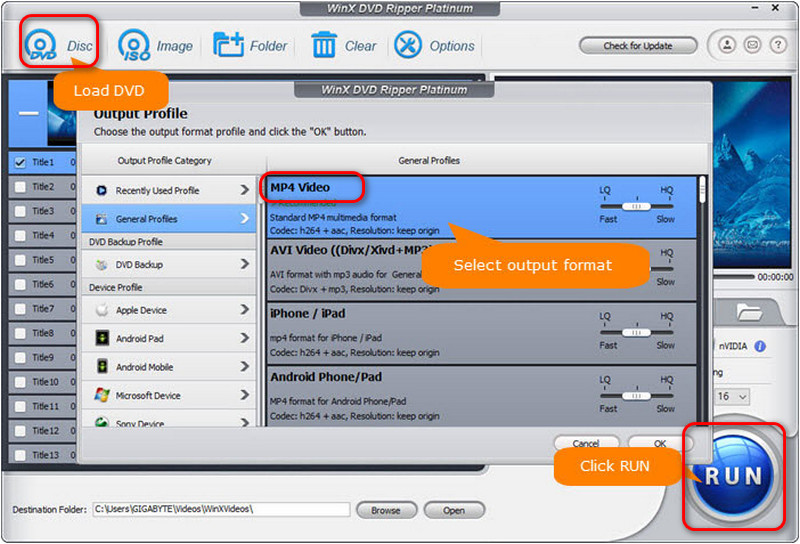
Open the WinXDVD Ripper Platinum app. Click the DVD Disc icon and then select the source disc. After choosing the targeted DVD, please click OK. It will read your loaded DVD and automatically detect the appropriate title.
Step 2. Choose MP4 as the Output Format.
Next, it will pop up an Output Profile window. Select General Profiles > MP4 Video from the right side and click OK. Click the Browse button, and you can choose where you want your output files to be saved.
Tips
If you’re converting for a phone or tablet, setting the resolution to 720p with a 2,500kbps bitrate offers an excellent balance between a sharp screen image and manageable file size.
Step 3. Start Converting.
After setting everything up, click the blue Run button to begin the conversion to MP4 process.
Pros
Cons
User Review: 3.9/5 from Trustpilot
“Decent program with simple operation…I've had discs that fail which rip elsewhere first time. I've also had issues getting subtitles with this program and use an alternate for subtitled discs.”
Leawo DVD Ripper is ideal for ripping DVDs with copy protectiuons to the common digital formats, such as MP4, MKV, AAC, FLAC, and so on. It can also bypass regional restrictions. So that you can enjoy DVD content on various devices without hassle. On the other hand, it is also a video editing tool because it can help you trim, cut videos, add effects and more. As for the processing speed, it is relatively fast. However, the interface content is so rich that the new users may need to find the targeted one.
Step 1. Launch Leawo DVD Ripper and choose DVD Ripper.
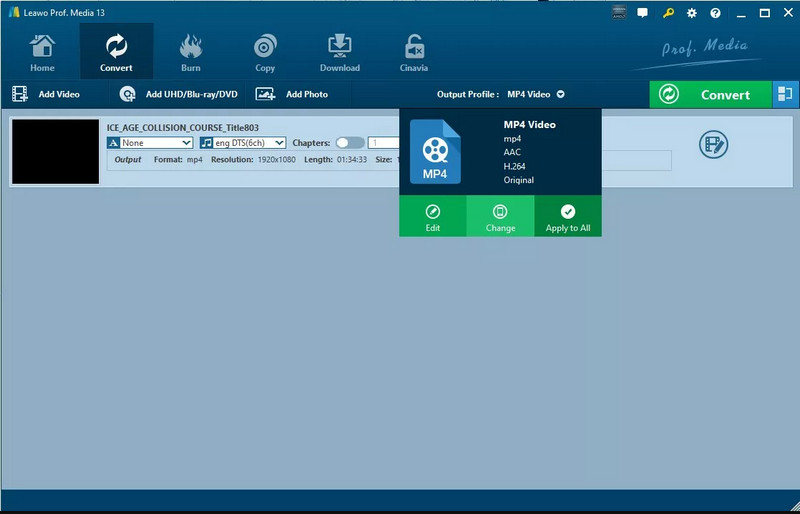
Step 2. Click Convert > Add UHD/Blu-ray/DVD on the top to load DVD movies that you want to convert into MP4.
Step 3. After it analyses the DVD information, click on the movie information and choose from a title. Then, go to the Output Profile. Its default output format is MP4.
Step 4. When everything you want is set up, return to the main interface and press the big green Convert button. Now, a pop-up will let you choose the saving location.
After choosing, click Convert again, and the DVD to MP4 conversion will begin.
Pros
Cons
User Review: 3.3/5 from Trustpilot
“What started out bad, ended up good! I’ve already ripped almost all of my DVD collection in just a couple of days! Everything worked seamlessly!”
MediaCoder is an old but still powerful DVD to MP4 converter, which has existed for 20 years. It is a free video transcoder and can convert DVDs to the most convenient MP4 format. You can choose from H.264/AVC, H.265/HEVC, VP8/VP9, and more. If you want to convert DVD to MP4 casually, this free tool is a good option. However, due to its customizable parameters and other rich functions, it is not beginner-friendly in some aspects. And the speed of conversion will be much slower than other alternatives above.
Step 1. Install MediaCoder and launch this DVD to MP4 converter.
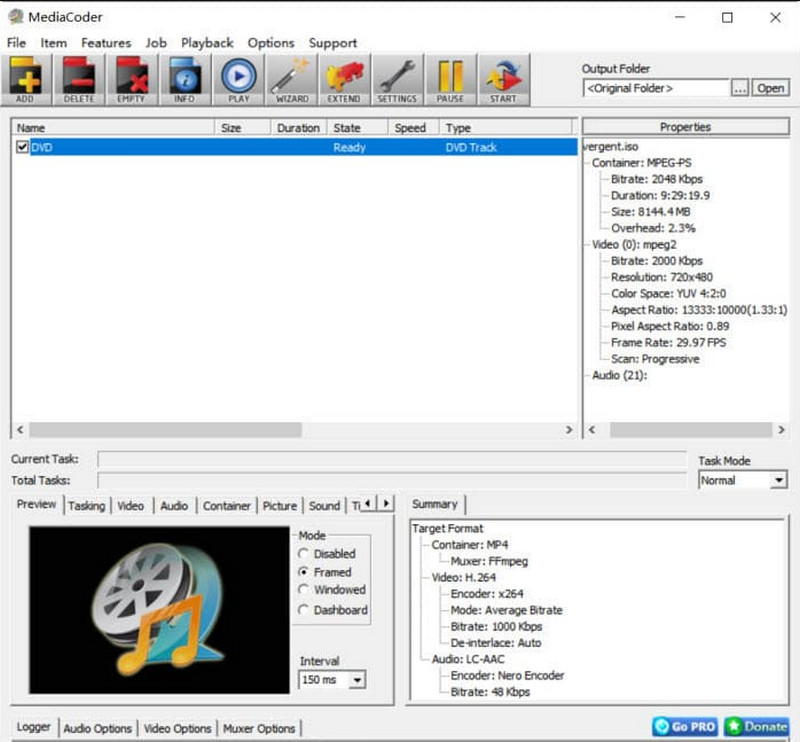
Step 2. Click Add Track from the File menu and select your DVD. Or click the Add file button to load your ISO image.
Step 3. Click on the Video > Enable Video. Then, choose Format, and set the video codec you want from H.264, HEVC, MPEG4, VP9, Xvid, etc. If you intend to convert DVD to MP4, set it as MP4 H.264. In the top right corner, click the Output Folder to choose the output path.
Step 4. After adjusting all the settings, click START and wait for the conversion. You will get the flexible MP4 videos soon.
Pros
Cons
User Review: 1.1/5 from Trustpilot
“…which is advanced in coding, but this "advanced" is what most messes the program, because, its interface, is something to be deciphered as a puzzle…you have to configure a series of items, just for a simple conversion…” – From VideoHelp
| Tool | Encrypted DVD Supported | Output Quality | Speed | Audio Tracks & Subtitles | Customized Fuction | OS | Ease of Use |
|---|---|---|---|---|---|---|---|
| VideoByte BD-DVD Ripper | APS, CSS, ARccOS, CPRM, AACS, BD+, Cinavia, Region Codes, etc. | Up to 4K/Lossless | 6× | Supports keep all/select/add | Superior parameter settings & built-in video editor | Windows 11/10/8.1/8/7/XP & MacOS X 10.7 or higher | ⭐⭐⭐⭐⭐ |
| HandBrake | Limited | 480p/720p/1080p | Basic | Customized | Video editing | Windows 10 or later, macOS 10.13 or later, Linux, and other | ⭐⭐⭐ |
| VLC | CSS and Region Code | Medium | Basic | Subtitle sync | Video and audio filters | Windows XP SP3 or later & MacOS X 10.7.5 or later | ⭐⭐⭐ |
| Freemake | Unprotected DVD | Up to 1080p | 47× | only one voice audio/subtitle track every time | ❌️ | Windows 7/8/10 | ⭐⭐⭐ |
| Online File Convert | ❌️ | Compressed | Slow | ❌️ | ❌️ | Online | ⭐ |
| Movavi Video Converter | Unprotected DVD | 1080p/4K | Fast | Customized | Basic video editing | Windows 10/11 64-bit | ⭐⭐⭐⭐ |
| DVDFab DVD Ripper | CSS, APS, RC, RCE, Sony ARccOS, UOPs, RipGuard, etc. | 4K/5K/8K | 50× | Customized | Built-in video editor | Windows 11/10/8.1/8/7 (32/64 bit) & macOS 10.13 - 15.x | ⭐⭐⭐ |
| WinXDVD Ripper Platinum | region code, CSS, Sony ARccOS, & Disney DRM | 480p/720p/1080p | 47× | Customized | Trim/crop/merge videos | Windows 7 or later & MacOS X 10.6 or later | ⭐⭐⭐ |
| Leawo DVD Ripper | CSS copy protection | High | 6× | Customized | Built-in video editor | Windows 11/10/8.1/8/7 & MacOS 10.13/10/14/15/26 | ⭐⭐⭐ |
| MediaCoder | Limited (struggle with newer or complex protections) | High | Slow | sync | Various filters | Only Windows | ⭐ |
1. Audio and Video Out of Sync
If the sound doesn’t match the lips, it’s usually caused by CPU overload or variable frame rates. You can change the Frame Rate from to a fixed value (like 23.97 fps) and ensure Hardware Acceleration is turned on to reduce the load on your computer.
2. Cannot Read or Loaded DVD
This is often due to region code locks or physical scratches. Firstly, choose a professional DVD converter like VideoByte BD-DVD Ripper, to bypass almost all kinds of Region Codes and DRM automatically. If it still fails, wipe the disc and try to load again.
3. Output Files Being Too Large to Manage
High-quality ripping can result in massive files. Solution: We recommend selecting the H.264 MP4 format. It provides the best balance between 1:1 visual quality and storage space.
The best DVD to MP4 program should handle both protected DVDs and personal video files while maintaining fast conversion speeds. It should also keep the original quality and offer editing features to help users convert and trim DVDs.
Considering these basics, a desktop DVD to MP4 converter, VideoByte BD-DVD Ripper is an ideal option, as it effectively addresses these requirements.
A: It is noted that if you only convert DVD to MP4 for personal use, then the action is acceptable. But when you rip copy-protected DVDs and use the converted videos for commercial purposes, which leads to the actual profit loss of the DVD providers/merchants, you are actually against the copyright law. So make sure that you only convert DVDs to MP4 for personal use.
A protected DVD like a commerical movie is encrypted with copy protection and region code. To convert a protected DVD to MP4, you need a DVD ripper that can remove copy protection and region code from the DVD disc. Here we will take VideoByte BD-DVD Ripper as an example.
Step 1. Download and install VideoByte BD-DVD Ripper on your PC or Mac.
Step 2. Insert your protected DVD into your computer. Click the “+” icon to load the protected DVD.
Step 3. Click Rip to Video. On the Rip All to, choose MP4. Finally, click Rip All to start converting the protected DVD to MP4 digital video.
Check this post for more methods: How to Rip Copy Protected DVD on PC in 3 Easy Ways
To convert DVD to MP4 for free, you can get help from free and open-source video converters like HandBrake and VLC as well as online tools. Do note that free DVD to MP4 converters often fail to convert your DVDs, not to mention ripping copy-protected DVDs.
For stable and successful DVD conversions, you can try professional desktop DVD to MP4 converters like VideoByte BD-DVD Ripper. These programs also come with free trials, which is worth a try.
See also: Best Free DVD Rippers for Windows & Mac
No. While Windows Media Player has the ability to convert CDs to various formats such as WMA, MP3, WMV, ALAC, and FLAC, it does not support DVD to MP4 conversion. It can only be used to play and record videos. To convert DVD to MP4, you will need to use dedicated DVD converter software like VideoByte DVD Ripper, VLC, and Handbrake. Using these DVD to MP4 converters, you can easily play DVD content on your PC, smart TV, PS5, and other devices.
After going through these ten best online and desktop ways to convert DVD to MP4, you can make full use of them to back up your DVD videos or watch them on media players on your computer easily. Select the most suitable DVD to MP4 converter based on your needs.
Among these options, VideoByte BD-DVD Ripper stands out with its stable, fast, and easy performance and its excellent ability to convert personal and protected DVDs to MP4. Install it for free and give it a try!
Hot Articles
by in 6 November, 2024
by in 1 November, 2024
by in 15 September, 2025

 English
  Korean
  Dutch
Dutch  Chinese (traditional)
  Italian
  Spanish