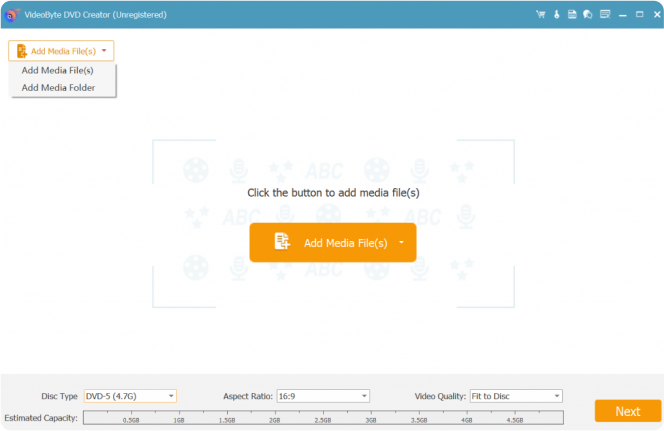
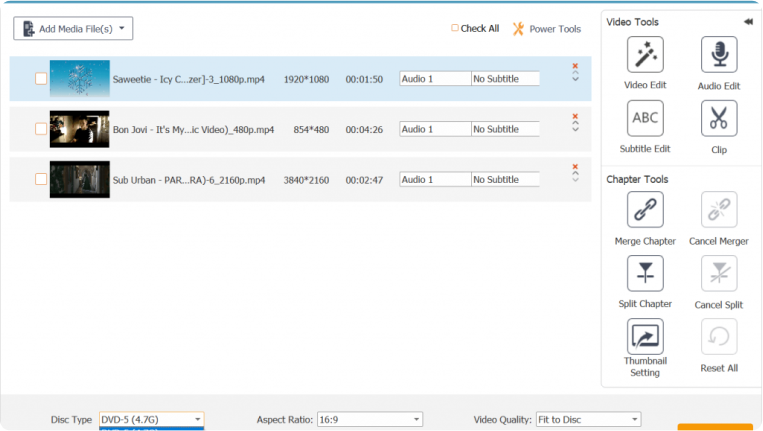
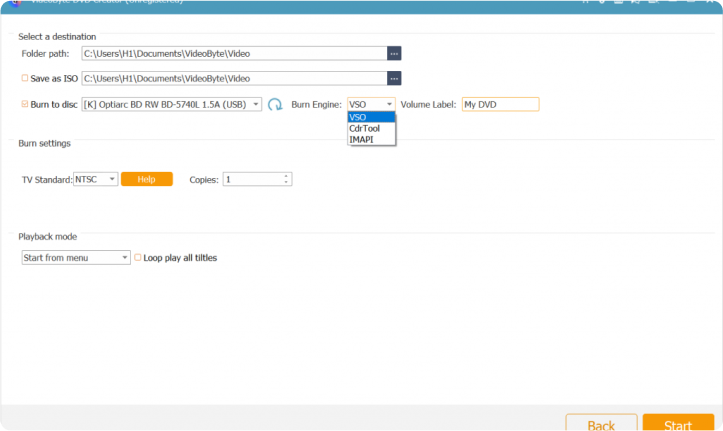






Have all-time favorite movies and series? Use VideoByte DVD Creator and burn them to DVD/Blu-ray. Build a local DVD collection and enjoy it with your home theater system.

Record the moments on birthday, graduation, or any life event, and easily burn them to DVD with VideoByte DVD Creator. Watch it with family and friends to preserve memories.

Video files can be deleted accidentally and not recoverable. Try VideoByte DVD Creator and turn them into DVD/Blu-ray. Create backups and secure your videos as physical copies.
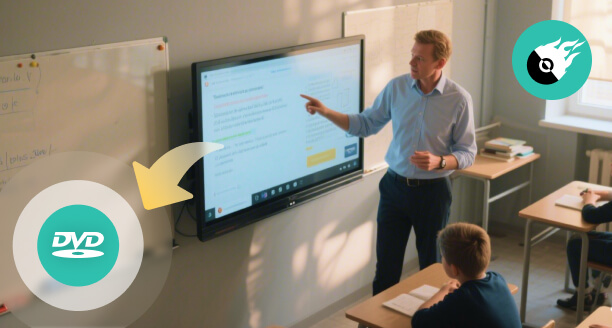
Burning MP4 tutorials or lecture videos into structured DVD/Blu-ray discs via the DVD creator. Teachers or educators can access multimedia courseware and easily show high-quality learning resources to students.

A DVD for building your brand story and product demos serves as a premium business gift for clients and partners. Make standard company videos on a DVD to grow brand awareness and improve user engagement.
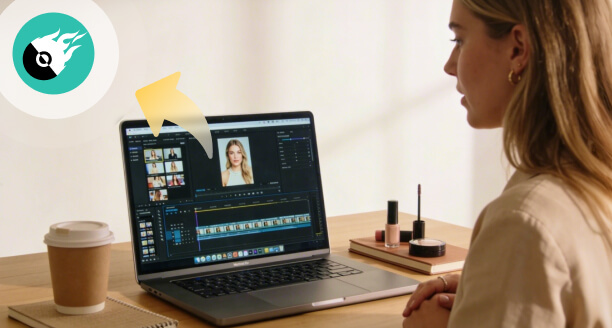
Are you a Vlogger or video creator? Give your creative projects a unique look that reflects your style. Use this DVD/Blu-ray burner, convert the best reels or moments behind the scenes into a DVD with interactive menus for followers.
No longer afraid of losing precious video footage, and no longer relying on video streaming subscriptions that expire at any time! With VideoByte DVD Creator, you can create a permanent backup of your cherished videos while preserving every detail of the original high-definition files.
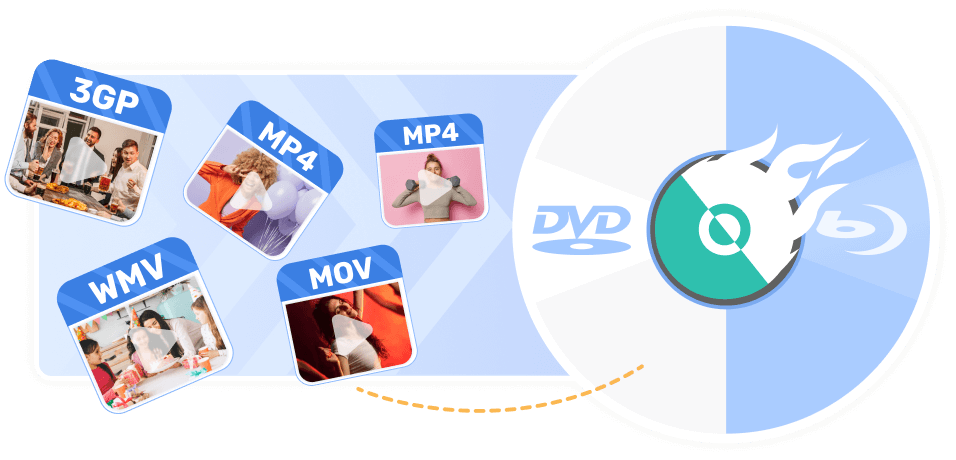
It is a feature-rich program to burn DVD/Blu-ray on macOS X 10.11 or higher and Windows 11/10/8.1/8/7/XP. The DVD burning software supports converting and burning popular video formats into DVD and Blu-ray discs/Folders/ISO files, experiencing bit-perfect conversion from digital files to physical media.
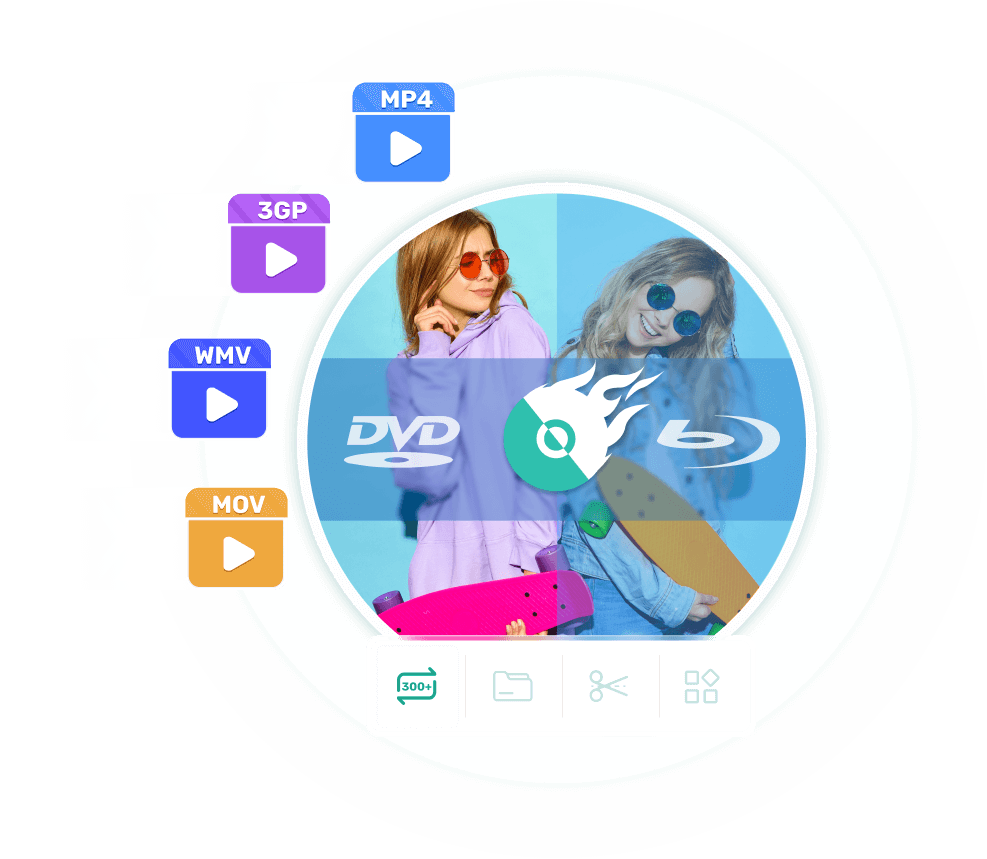
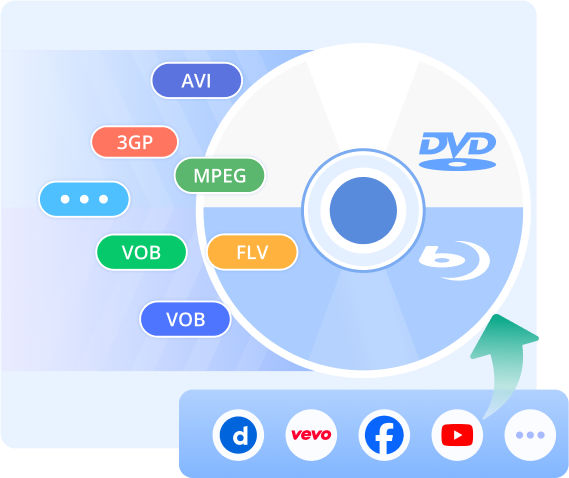
No restrictions on the video format! As the best DVD/Blu-ray creator and burner, VideoByte DVD Creator supports 300+ video formats such as AVI, MPEG, 3GP, MP4, VOB, FLV, M2TS, MTS, TS, SWF, MKV, MPG, etc.
Whether it's a short home video, a 3D/HD movie (720p/1080p/4K), or a video from online websites like YouTube, Facebook, Dailymotion, Vevo, etc., you can easily burn videos into a DVD or Blu-ray while preserving the original fidelity.
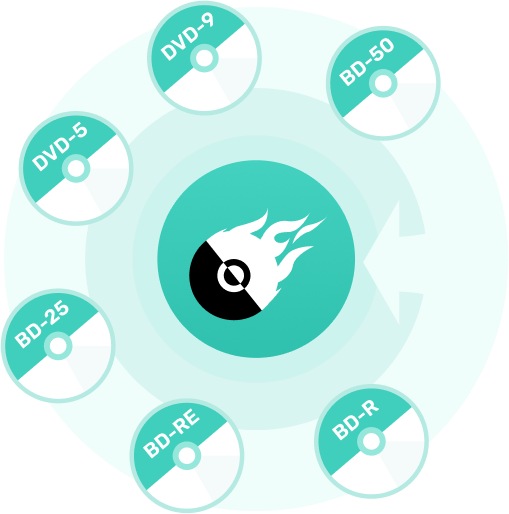
Watch Playable DVDs Anytime! VideoByte DVD creator is designed for universal compatibility. Whether you need high-capacity storage or standard DVD playback, it supports all common DVD disc types, including DVD-5, DVD-9, BD-25, BD-50, BD-R, BD-RE, and more, backing up your disc data in the specific discs that suit your needs best.
Unlike most DVD creators that only support DVD burning, it also serves as a Blu-ray burner program that allows you to easily create high-capacity Blu-ray discs, folders, and ISO files to preserve your HD/4K videos in physical form.
(*Mac version only supports DVD authoring. Blu-ray support coming soon.)
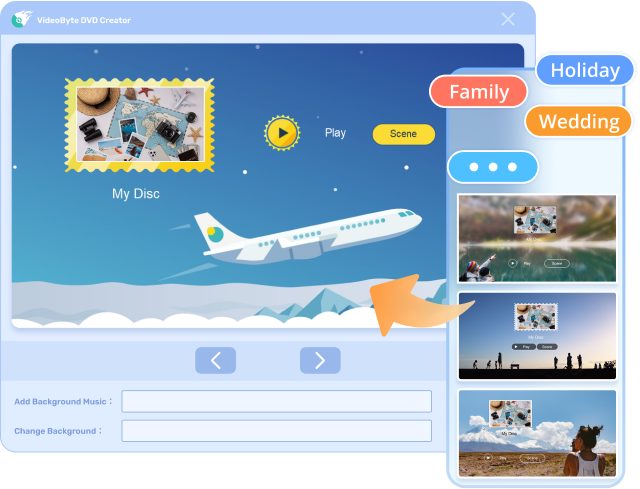
VideoByte DVD Creator offers multiple designed DVD menu templates with styles of holiday, travel, and other popular themes, letting you navigate your disc and craft eye-catching menus in a few clicks.
In addition to pre-made settings, you can also save and take full control of your customized menu templates: add background music/opening film and change background, text settings, playback buttons, etc., fine-tuning every detail to create a personalized DVD file that matches your style.

Trim Videos
Clip, crop, rotate, add filters, adjust color settings, and add a watermark before burning video to DVD for the best viewing experience.

Add Audios
Add external audio tracks, like background music, sound effects, or voice-overs. Adjust the sound volume.

Add Subtitles
Position subtitles and define the size, transparency, color, and subtitle delay. Support 13 subtitle file types like SRT, SSA, and ASS, and 37 languages.

Adjust Chapters
Merge and split the chapters as you prefer. Set a unique thumbnail for your video.
 Fast Burning Speed
With Intel/NVIDIA/AMD acceleration, delivering up to 6x faster burning.
 Format Compatibility
Import and burn all mainstream video formats. No pre-conversion required.
 High-Quality Output
Preserve original video quality with full bitrate control to fit disc capacity.
 Custom Menu Templates
Personalize DVDs with themed templates and full customization options.
 Video Editing
Trim, crop, adjust picture colors, and add subtitles before burning.
 Real-time Preview
Preview videos and make adjustments before burning the video to DVD.
 NTSC/PAL TV Support
Burn either NTSC DVD or PAL DVD to be playable worldwide.
 Intuitive & Clean Interface
Beginners can create professional DVDs with a user-friendly layout.
 Customer &Tech Support
24-7 customer service & regular free updates for the best experience.

VideoByte DVD Ripper is a neat software utility designed to ripper and writes DVD and Bluray discs, allowing you to make copies of all your favorite discs.
View the Post >>
VideoByte DVD Creator, the most professional one among free DVD burners, offers every feature you need for burning videos to DVDs with ease of use.
View the Post >>
VideoByte DVD Creator is the best DVD burner for Windows and Mac. With menu templates and a video editing toolset, it helps you create captivating videos and burn them to DVD.
View the Post >>"Best DVD creator I've ever used! I picked it because VideoByte outperforms other competitors as it can easily burn Blu-ray from my family videos. Will recommend to everyone."

Eric Bruce From Houston
"The DVD maker works perfectly! VideoByte makes it easy and fast to burn HD videos to DVD. Its editor is awesome and easy to use. Amazing software for burning tons of DVDs."

Eva Brown From Boston
"VideoByte has an extremely simple interface. l love how easy and smooth it is to create movie DVD from MP4 file. Not to mention its fast speed. Great DVD burning software for beginners."

John Davis From Atlanta

10+
Years of experience

249
Countries and territories

247 million
Satisfied users

358+ million
Downloads
1. Is VideoByte DVD Creator free?
VideoByte DVD Creator offers a 30-day free trial for first-timers. With the Free Trial, you can test its features before committing to its monthly or yearly plans. Learn More >>
2. Why didn't I receive my license code?
If you can’t receive a VideoByte license code after purchasing, check your email folder in case the email is accidentally deleted or sent to the trash folder. If not, you can click here and describe the issue. Once we receive it, we will resend the code to you right away.
3. After I purchased the program, how do I register it?
Download and install the program on your computer first. Then launch the program and you will see a small window show up. You can now enter your registered email address and registration code into the box, then click on the “Register” button to finish the registration.
4. What kind of DVD types does your program support?
VideoByte DVD Creator supports various DVD types, like DVD-R/RW, DVD+R/RW, DVD+R DL, DVD-R DL, DVD-5/9, etc.
5. What's an ISO file?
An ISO file often called an ISO image, is a term commonly associated with CD and DVD burning. It is a complete copy of a CD or DVD. If you burn a video to an ISO file, you’ll get lossless quality, the same as the original one. Check our post for burning MP4 to ISO for detailed steps.
6. How to fix the issue when the program says "no driver found" before burning?
You can restart the program and try again. If that doesn’t help, try the methods in the following:
• If you get a DVD driver built into the computer, you can use the CD attached to the computer to reinstall and update the DVD driver.
• If you get an external DVD driver, you can also contact the manufacturer of the DVD driver to fix the issue.

 English
  Korean
  Dutch
Dutch  Chinese
  Italian
  Spanish